
Write your first test
This guide walks through the new-test wizard in detail, using a Web UI test, the most common kind. You’ll describe a flow in plain English, choose the options that matter, run it and learn how to read the result. The same wizard creates every other kind of test.
Before you start: you need a running Plainwright (Quickstart), an AI provider (AI providers) and a project whose base URL points at the app you want to test. To create tests you need the editor role or higher on the project.
1. Create a project
Section titled “1. Create a project”Skip this if the guided setup already made one.
- On Projects (the home page), click New project.
- Enter a Name and the Base URL where tests start, such as
https://staging.example.com, plus an optional description. Click Create project. - On the ready page, click Write your first test. If the project has no module yet, a General module is created for you.
A project holds everything about one app or AI product: its URL, modules, tests, runs, secrets and settings. See Projects, modules and tests.
2. Open the new-test wizard
Section titled “2. Open the new-test wizard”On the project’s Tests board, click Add test at the bottom of a module column. The wizard has three steps: Kind, Describe and Options.
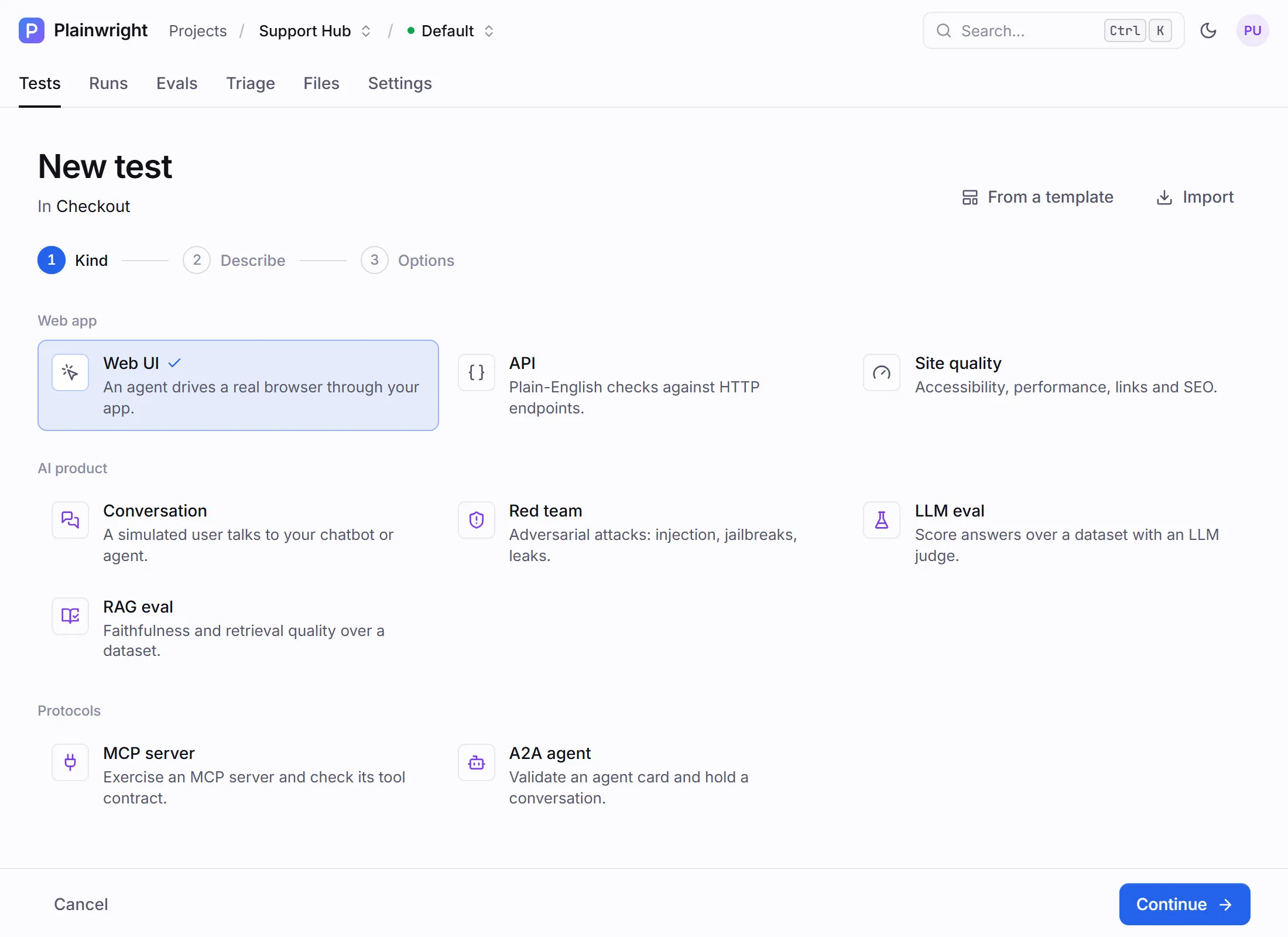
Two shortcuts sit at the top right of the wizard’s first step:
- From a template adds ready-made tests, for example Sign-up works, Log in with valid credentials, Health check responds or Accessibility (WCAG AA). You fill in a few blanks.
- Import turns Jira, Linear or GitHub issues, Figma frames or Notion pages into test drafts. See Figma and Notion imports.
3. Choose the kind
Section titled “3. Choose the kind”Keep Web UI selected for a test that drives a browser through your app, and click Continue. The other kinds are explained in Test kinds.
4. Describe the test
Section titled “4. Describe the test”Fill in two fields:
| Field | What to write |
|---|---|
| Name | A short title that reads well in a list and in alerts, such as Guest checkout with a promo code. |
| What should the test do? | The flow and, above all, the outcome to check. Plain English; no selectors. |
Write the description the way you’d brief a new tester. Say where to start, what to do and what must be true at the end:
Go to the pricing page and choose the Pro plan.Sign up with a new, unique email address and a strong password.Check that the billing page shows "Pro" as the current plan and a monthly price.The goal and the expected result are explicit, so the agent knows exactly when the test has passed or failed.
Test the pricing page.There is nothing to verify, so the agent has to guess what “working” means.
Click the third link in the header, then click the button with class btn-primary,then type into the second input.This brittle, selector-style script throws away the agent’s advantage of reading the page like a person.
A few rules of thumb:
- Credentials go in the vault, not in the text. Write
{{secrets.QA_EMAIL}}and{{secrets.QA_PASSWORD}}; the agent types the placeholder and the real value is swapped in at the last moment. See Secrets and saved logins. - Files are referenced by name. Upload a file on the project’s Files tab, then write “upload the resume”. The agent is told each file’s path. See Test files and uploads.
- Use unique data (“a new, unique email address”) for sign-ups, so the test can run repeatedly.
Writing good tests has many more patterns.
Click Continue. If a required field is empty, the wizard highlights it and stays on this step.
5. Set the options
Section titled “5. Set the options”Everything on this step is optional. You can change it later on the test’s Settings tab.
| Section | Option | Default | What it does |
|---|---|---|---|
| Checks | Assertions | none | Plain-English statements checked by the judge against the final screenshot and page text, such as “The receipt shows an order number”. Up to 20. Web UI only. |
| Reliability | Retries on failure | project default (no retries unless an admin changes it) | Re-run a failed run automatically, up to 5 times. A pass on retry marks the run flaky. The project default applies to Web UI and API tests; other kinds retry only when you choose a number here. |
| Reliability | Trials | 1 | Run the test 1–10 times per run and judge the pass rate. |
| Reliability | Saved login | None — start logged out | Start already signed in, using a session captured by a setup test. |
| Reliability | Visual regression | off | Compares the final screenshot with an approved baseline and fails when too many pixels change. Its threshold and ignored regions appear under Checks once it is on. |
| Reliability | Quarantine | off | The test still runs but never fails the CI gate or sends alerts. |
| Schedule | Schedule | No schedule | Run automatically on a preset schedule (UTC), always against the project’s default URL. |
See Assertions and visual regression, Retries and flaky tests and Scheduling.
6. Create and run
Section titled “6. Create and run”- Create & run saves the test, queues its first run and opens the run page.
- Create saves the test and opens its page, where you can run it later.
The first run uses the environment selected in the top bar, shown next to the buttons as First run: default URL or the environment’s name. See Environments.
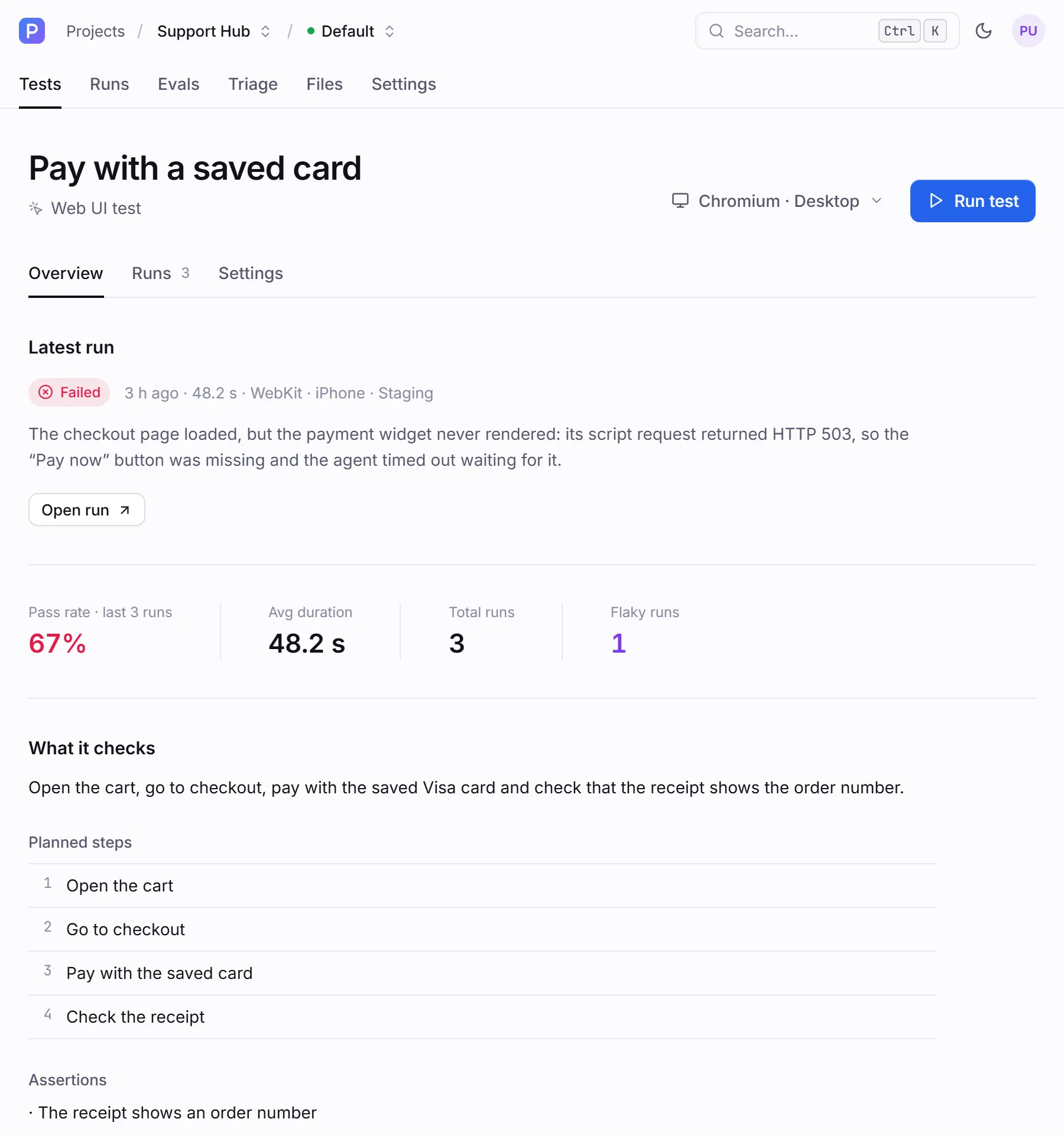
When you save a Web UI test, and again whenever you change its description, Plainwright makes one model call to draft the planned steps you see on the test page. They are a preview for people reading the test. The agent doesn’t follow them rigidly; on every run it plans from your description and the live page. Other kinds make no model call when you save them.
Run it again later
Section titled “Run it again later”On the test page, pick a browser and device (Chromium · Desktop by default; Firefox, WebKit, iPhone, Pixel and iPad are also available) and click Run test. You can also run a whole module from its column header, or every test with Run all on the board.
7. Read the result
Section titled “7. Read the result”The run page shows the live browser while the test runs, then the verdict and evidence.
| Status | Meaning | What to do |
|---|---|---|
| Passed | The agent carried out the test and every check held. | Nothing. |
| Failed | The test ran, and the app didn’t do what you described. | Read What happened and the steps. It is usually a real bug or an outdated description. |
| Error | The test couldn’t run properly: the provider rejected the key, the browser service was unreachable, the model ran out of steps. | Fix the setup problem the message names, then re-run. |
| Blocked | The app showed a CAPTCHA. | See One-time codes and CAPTCHAs. |
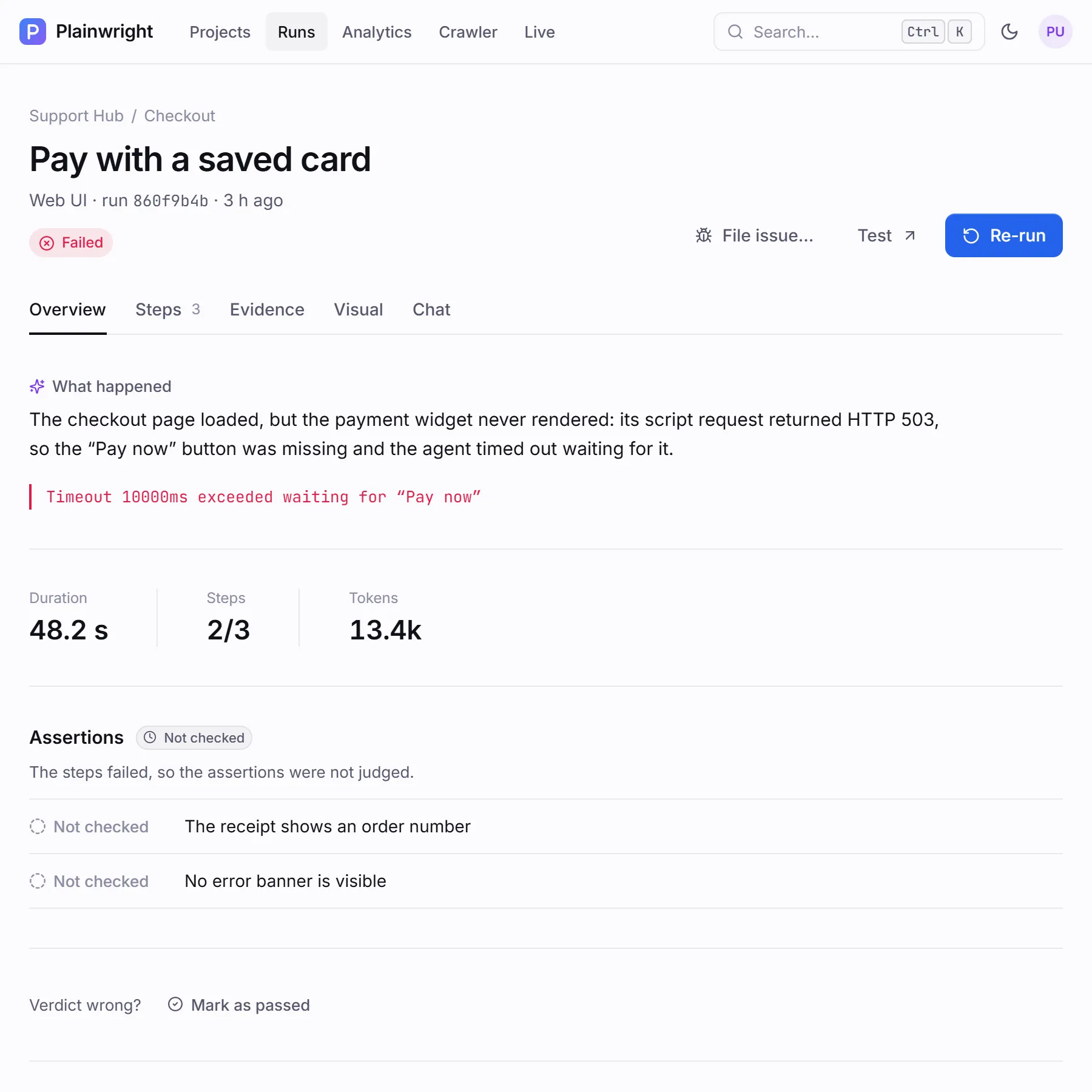
The tabs that matter for a Web UI run:
- Overview: What happened (a plain-English explanation of a failure), the error, duration, steps and tokens, assertion results, and details such as the model, browser and trigger.
- Steps: each step the agent reported, with its screenshot and error.
- Evidence: a timeline of every browser action with a screenshot after each, plus the page’s console and network logs.
- Visual: the screenshot comparison, when visual regression is on.
- Chat: ask questions about this run, answered from its evidence.
If the verdict is wrong (say the agent failed a test because of copy you changed on purpose), use Verdict wrong? → Mark as passed. The original result is kept and the override is recorded. See Verdict overrides.
Do the same with the API
Section titled “Do the same with the API”Everything in the wizard is also available over the REST API, so you can create tests from scripts. Sign in to get a token, look up a module, create the test and trigger a run:
BASE=http://localhost:8080
# 1. Sign in (form-encoded, OAuth2 style) and keep the bearer tokenTOKEN=$(curl -s -X POST "$BASE/api/auth/login" \  --data-urlencode "username=you@example.com" \  --data-urlencode "password=$PLAINWRIGHT_PASSWORD" | jq -r .access_token)
# 2. Pick the first module of a projectMODULE_ID=$(curl -s "$BASE/api/modules/project/$PROJECT_ID" \  -H "Authorization: Bearer $TOKEN" | jq -r '.[0].id')
# 3. Create a Web UI testTEST_ID=$(curl -s -X POST "$BASE/api/test-cases/" \  -H "Authorization: Bearer $TOKEN" -H "Content-Type: application/json" \  -d @- <<EOF | jq -r .id{  "module_id": "$MODULE_ID",  "name": "Add and complete todos",  "kind": "ui",  "natural_language": "Add a todo called \"Buy milk\", mark it as completed and check the counter says 0 items left.",  "assertions": ["No error message is visible"],  "trials": 1}EOF)
# 4. Queue a run (browser and device are optional)RUN_ID=$(curl -s -X POST "$BASE/api/runs/trigger/$TEST_ID?browser=chromium&device=desktop" \  -H "Authorization: Bearer $TOKEN" | jq -r .id)
# 5. Check on itcurl -s "$BASE/api/runs/$RUN_ID" -H "Authorization: Bearer $TOKEN" \  | jq '{status, effective_status, error_message, ai_explanation}'
Every endpoint is listed in the REST API reference.