
Alerts: Slack, Discord, webhooks and email
Plainwright can tell your team when a run finishes. Each project has two alert channels, and one rule decides when both fire:
- Webhook: a short message to Slack, Discord, Mattermost, or any endpoint that accepts JSON.
- Email: an HTML summary with the error, the AI explanation and a link to the run.
Alerts are per project and best effort: a webhook or mail server that is down never fails or delays a test run.
Set up alerts
Section titled “Set up alerts”Open the project’s Settings → Notifications. You need the admin role to change it; everyone else sees it read-only.
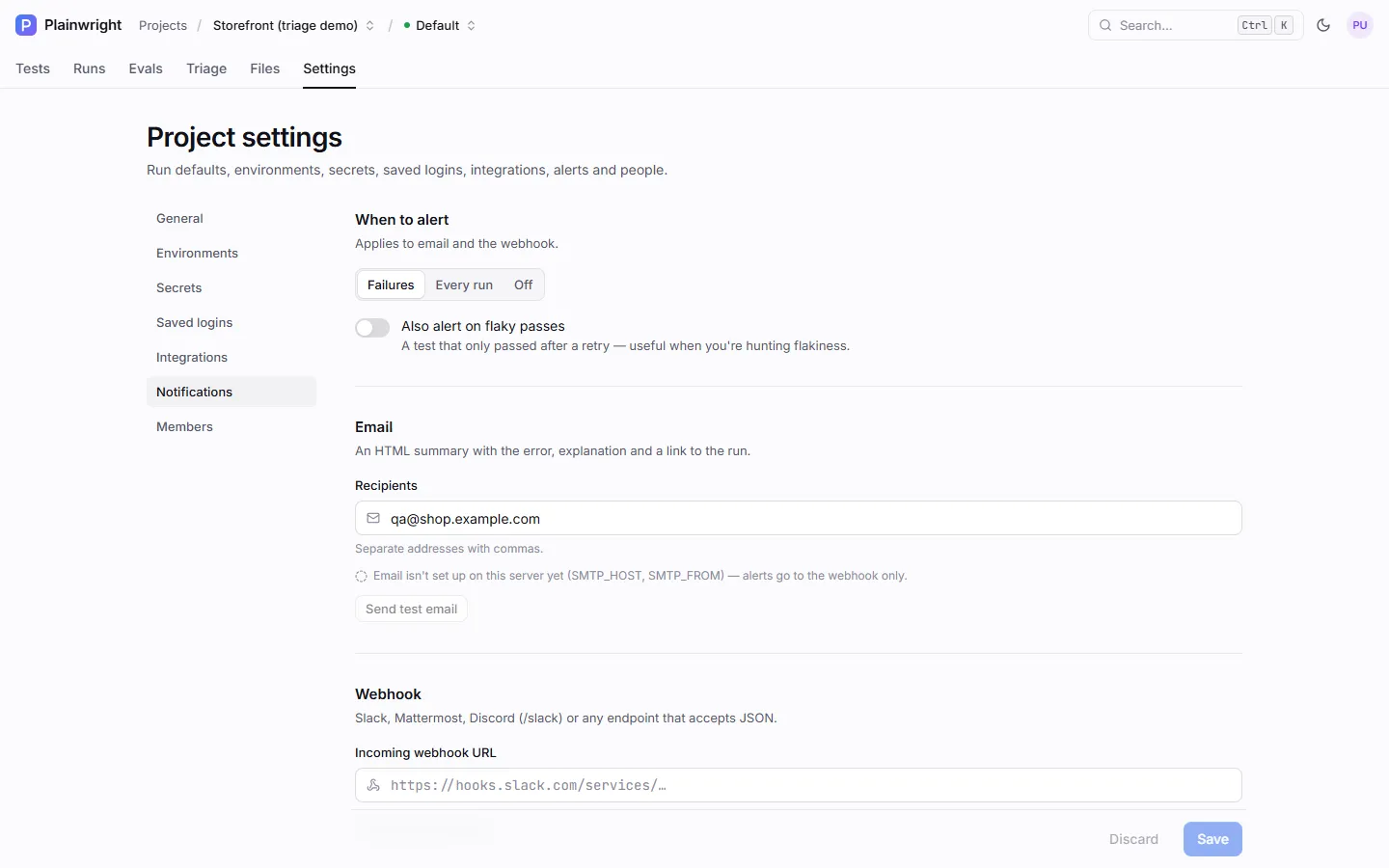
| Setting | Values | Default |
|---|---|---|
| When to alert | Failures (failed or error), Every run, Off | Failures |
| Also alert on flaky passes | On or off. A flaky pass is a test that only passed after a retry. Only matters with Failures. | Off |
| Recipients | Email addresses, separated by commas | none |
| Incoming webhook URL | An http(s):// URL |
none |
Click Save, then Send test email or Send test message to check each channel. The test buttons use the saved settings, so save first.
The same page has Auto-file issues for new failure clusters, which files an issue in Jira, Linear or GitHub for every new failure cause instead of (or as well as) alerting. See File issues automatically.
- In Slack, create an app with Incoming Webhooks turned on, add a webhook to the channel you
want, and copy its URL (it starts with
https://hooks.slack.com/services/). - Paste it into Incoming webhook URL and click Save.
- Click Send test message. A “Test notification” message should appear in the channel.
Discord
Section titled “Discord”Discord webhook URLs work as you paste them.
- In Discord, open the channel’s Edit Channel → Integrations → Webhooks, create a webhook and
copy its URL. It looks like
https://discord.com/api/webhooks/<id>/<token>. - Paste it into Incoming webhook URL and click Save.
- Click Send test message.
Plainwright recognises a Discord webhook URL (on discord.com or discordapp.com, including the
ptb and canary hosts) and sends Discord’s own message format: the same text as below, in a
content field, cut to Discord’s 2,000-character limit, with mentions turned off so a test name
can’t ping @everyone. A URL ending in /slack is Discord’s Slack-compatible endpoint and still
gets the Slack format.
Mattermost and other webhooks
Section titled “Mattermost and other webhooks”Mattermost incoming webhooks work as they are. Any other receiver (and Slack) gets an HTTP POST
with Content-Type: application/json and a body like this:
{ "text": "❌ *Pay with a saved card* — FAILED · 40.0s\nProject: Storefront\n_The Pay now button never appeared: the payment form failed to load._\nhttps://plainwright.example.com/projects/74a76eba-…/test/a4b07fe9-…"}The text has, line by line:
- a status emoji (✅ passed, ❌ failed, ⚠️ error), the test name, the status and the duration;
- the project name;
- for a flaky pass, “Flaky: passed on attempt N after failing.”;
- the AI explanation in italics, up to 300 characters, when there is one;
- a link to the test’s page, when
APP_BASE_URLis set on the server.
The request times out after 10 seconds and is not retried. Any 2xx or 3xx response counts as
delivered.
Email alerts need SMTP on the server. Set at least SMTP_HOST and SMTP_FROM (plus SMTP_PORT,
SMTP_USER, SMTP_PASSWORD and SMTP_TLS as your provider needs); see
Sign-in and email. Until then the Notifications page says
“Email isn’t set up on this server yet” and alerts go to the webhook only.
| Server variable | Default | Effect |
|---|---|---|
SMTP_HOST, SMTP_FROM |
empty | Both are required to send any email. |
EMAIL_ALERTS_ENABLED |
true |
Set to false to turn off alert emails for every project, but keep invitations and password resets. |
APP_BASE_URL |
http://localhost:8080 |
Used for the Open the run link. Set it to your public URL. |
Each alert email has:
- the subject
[Plainwright] Failed: <test> — <project>(orPassed:,Error:;[Plainwright] Flaky: <test> — <project>for a flaky pass); - the project, test kind, score and threshold (for scored tests), attempt, duration, environment, and a CAPTCHA notice when the run was blocked;
- the error and the AI explanation;
- an Open the run button that links to the run page.
Every recipient gets the same message. Addresses are checked when you save.
Quiet rules
Section titled “Quiet rules”These apply to both channels:
- Quarantined tests never alert. They keep running and reporting. See Quarantine and re-run.
- A failure that will be retried waits. Only the final attempt alerts, so a test that passes on its retry sends nothing, unless you turned on flaky-pass alerts.
- Overrides don’t re-alert. Alerts go out when the run finishes. Changing the verdict later doesn’t send a new one.
Set alerts with the API
Section titled “Set alerts with the API”Alert settings are fields on the project (PUT /api/projects/{project_id}, admin role).
curl -fsS -X PUT "$PLAINWRIGHT_URL/api/projects/$PROJECT_ID" \ -H "Authorization: Bearer $PLAINWRIGHT_TOKEN" -H "Content-Type: application/json" \ -d '{ "notify_on": "failure", "notify_email": "qa@acme.example, oncall@acme.example", "notify_webhook": "https://hooks.slack.com/services/T000/B000/XXXX", "settings": {"notify_flaky": true} }'| Field | Values |
|---|---|
notify_on |
failure, all or off |
notify_email |
Comma-separated addresses; "" clears it |
notify_webhook |
A URL; "" clears it |
settings.notify_flaky |
true to alert on flaky passes; null removes the setting |
| Endpoint | Role | Does |
|---|---|---|
POST /api/projects/{project_id}/test-notification |
admin | Sends a test message to the saved webhook (502 if the receiver rejects it) |
POST /api/reliability/project/{project_id}/test-email |
admin | Sends a test email to the saved recipients (400 with the reason if it can’t) |
GET /api/reliability/project/{project_id}/notifications |
viewer | Whether email is configured and enabled on the server, whether a webhook is set, the recipients, and whether run links can be built |