
Quickstart
This page takes you from a fresh clone to a passing browser test: start the stack with Docker Compose, create an account, connect an AI provider and run a plain-English test. Once the images are built it takes about five minutes.
You need Docker Desktop (or Docker Engine with Compose 2.24 or newer), Git, and either an API key for a tool-calling model (Anthropic, OpenAI, Gemini, OpenRouter or Groq) or Ollama running locally. Installation has the full requirements.
1. Get the code and configure it
Section titled “1. Get the code and configure it”-
Clone the repository:
Terminal window git clone https://github.com/SaiBolisetty/Plainwright.gitcd Plainwright -
Create your
.envfrom the example:Terminal window Copy-Item .env.example .envTerminal window cp .env.example .env -
Generate a strong, random
SECRET_KEY. Don’t skip this step, even on a laptop:Terminal window $bytes = New-Object byte[] 32[Security.Cryptography.RandomNumberGenerator]::Create().GetBytes($bytes)-join ($bytes | ForEach-Object { $_.ToString('x2') })Terminal window openssl rand -hex 32Both print 64 hexadecimal characters (32 random bytes). Paste the output into
.envasSECRET_KEY. You can also set a server-wide AI key here. That one is optional: you can connect a provider in the app during the guided setup instead..env SECRET_KEY=paste-the-64-hex-characters-here# Optional: a fallback model for every project that has no provider of its ownANTHROPIC_API_KEY=sk-ant-...
2. Start the stack
Section titled “2. Start the stack”-
Build and start every service in the background:
Terminal window docker compose up -d --buildThe first run builds the backend, worker, scheduler and frontend images, and each browser service downloads its browser. Expect several minutes. Later starts are much faster.
-
Wait until
backendandplaywright-mcpboth reporthealthy:Terminal window docker compose psThe backend applies database migrations as it starts. The browser service (
playwright-mcp) takes longest. On its first start it installs the Playwright MCP server and downloads Chromium, which can take several minutes. Follow it withdocker compose logs -f playwright-mcp. -
Open http://localhost:8080.
3. Create an account and follow the guided setup
Section titled “3. Create an account and follow the guided setup”-
On the landing page, click Get started (or open
http://localhost:8080/register). Enter your name, email and a password of at least 8 characters (at most 72 bytes), and click Create account. There is no special admin account: everyone signs up the same way and owns the projects they create. -
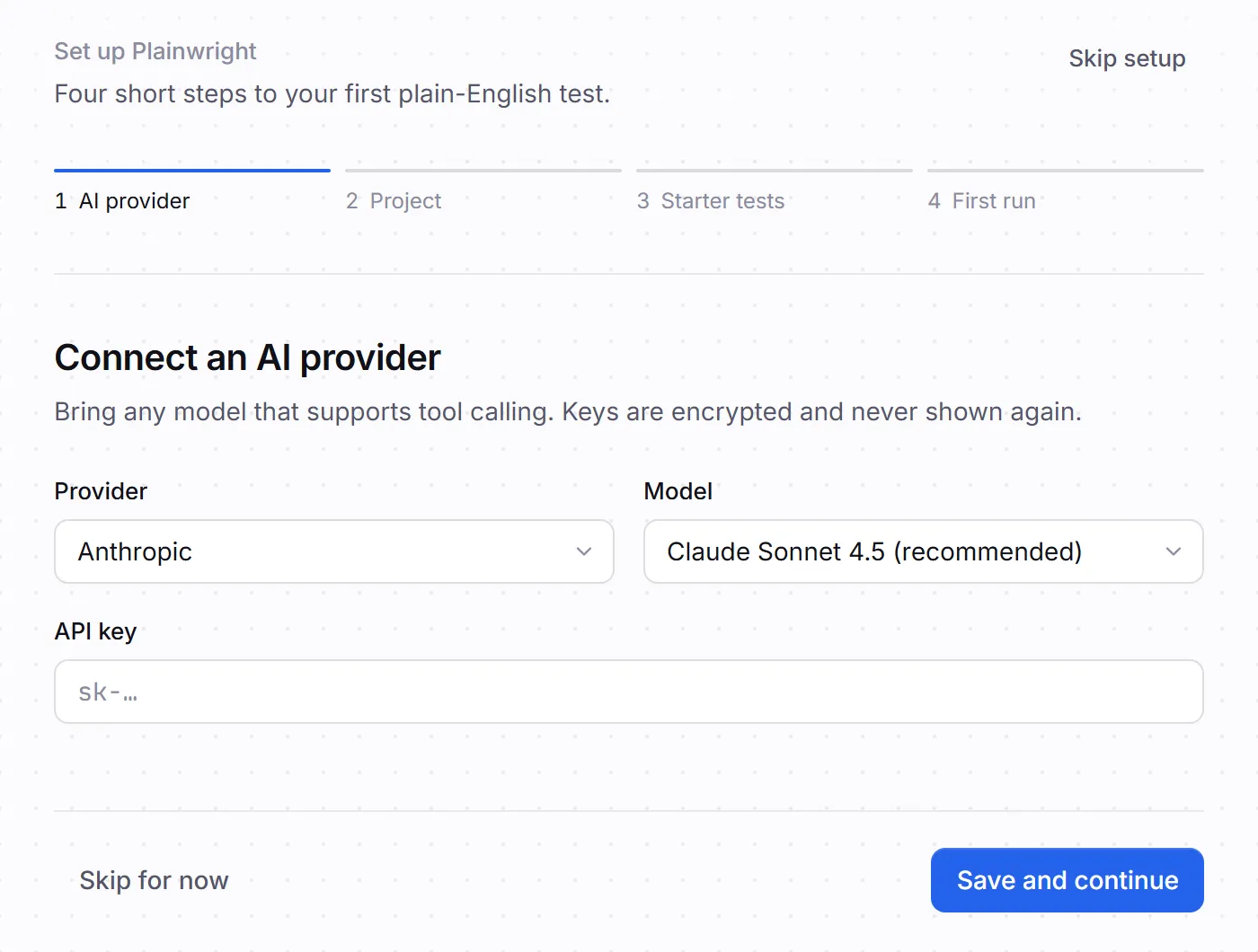
You land on Set up Plainwright, a four-step guide: AI provider, Project, Starter tests and First run. You can leave it with Skip setup at any time.
-
AI provider. Pick a provider and model, paste your API key and click Save and continue. The key is encrypted and becomes your default provider.
- Using Ollama? Choose Ollama (local). No key is needed; the default URL
http://host.docker.internal:11434is how the containers reach Ollama on your machine. - If you set
ANTHROPIC_API_KEYin.env, this step says the server includes a built-in model, and you can click Continue.
- Using Ollama? Choose Ollama (local). No key is needed; the default URL
-
Project. Enter the App URL where tests should start and a Project name (it is filled in from the URL if you leave it empty). To follow this page exactly, use Playwright’s public demo app:
https://demo.playwright.dev/todomvcClick Continue. The project is created with a first module (a column on the board) called Smoke tests. If you already have projects, this step offers Use an existing project instead.
-
Starter tests. For your own app, Templates offers ready-made tests (sign-up, log-in, search, accessibility and more), and Crawl my app suggests tests from your pages. For the demo app, click Skip — I’ll write my own.
-
First run. With no tests yet, click Write a test. This finishes the guided setup and opens the new-test wizard.
4. Write and run your first test
Section titled “4. Write and run your first test”-
Kind: keep Web UI selected and click Continue.
-
Describe: give the test a name and say what it should do, in plain English:
Name Add and complete todosWhat should the test do? Add a todo called "Buy milk" and check that it appears in the list.Add a second todo called "Walk the dog".Mark "Buy milk" as completed.Check that the counter at the bottom says "1 item left".Click Continue.
-
Options: leave the defaults and click Create & run.
-
The run page opens and shows the browser live: each action the agent takes and a frame of the page as it goes. A run like this takes a minute or so. It ends with Passed, the steps, the final screenshot and the token count.
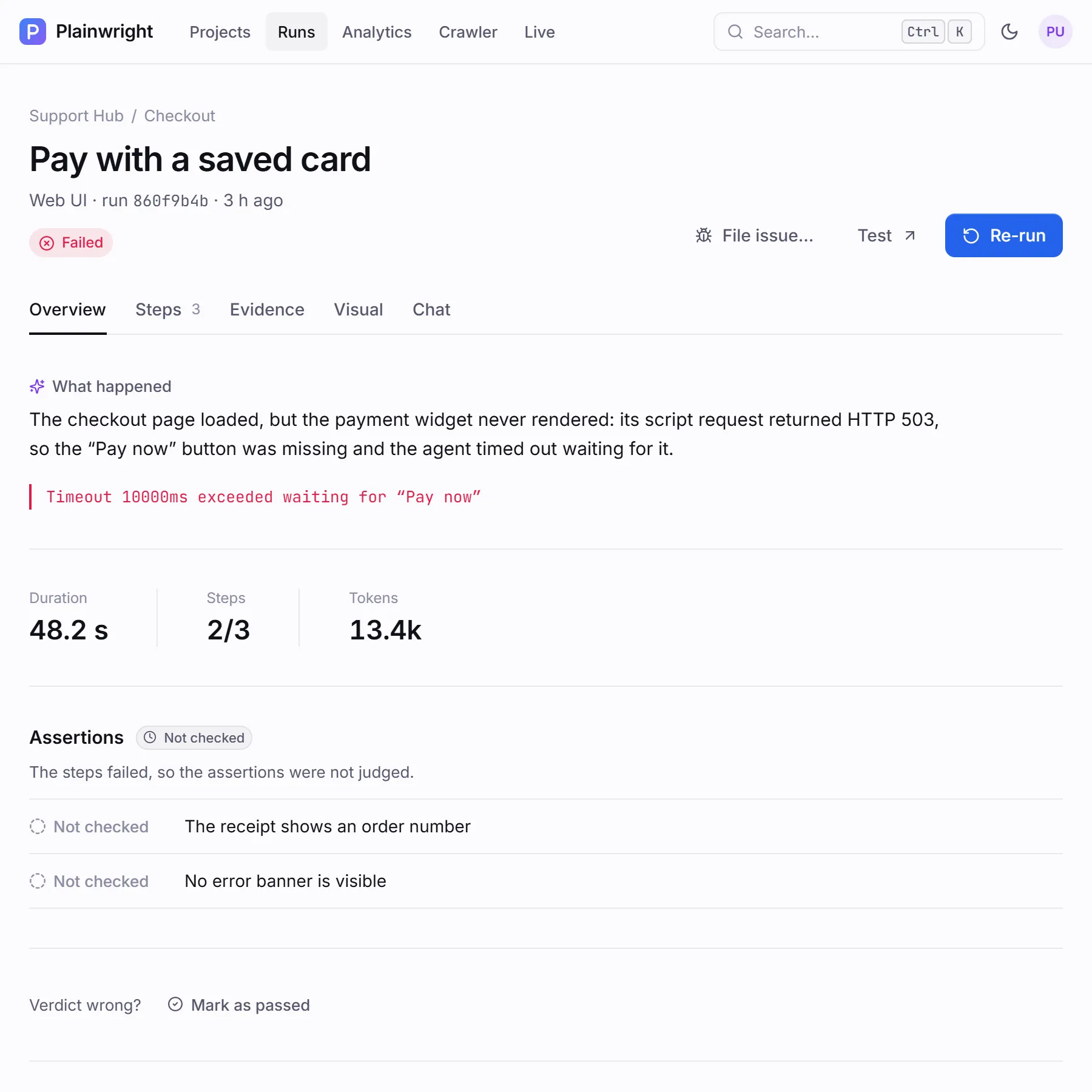
That’s the loop: describe the outcome, run it, read the evidence. The screenshot above shows the same run page for a failed run: the explanation, the exact error and the steps tell you what went wrong. Your passing run shows Every check passed. instead.
If the run doesn’t pass
Section titled “If the run doesn’t pass”| What you see | What to do |
|---|---|
| The run stays Pending | No worker picked it up. Check that docker compose ps shows the worker containers running, then read docker compose logs worker. |
| Error: Could not reach or drive the browser automation server | playwright-mcp was still starting. Wait until docker compose ps shows it healthy, then click Re-run. |
| Error: The AI provider rejected the API key | Fix the key in AI providers (avatar menu) and use Test connection, then re-run. You also see this when you skipped the provider step and the server has no ANTHROPIC_API_KEY: add a provider. |
| Error: The selected AI model does not support tool/function calling | Choose a tool-capable model. Every model Plainwright uses must support tool or function calling. |
| Failed | The test ran and the app didn’t do what you described. Read What happened and the Steps tab. |
backend exits with Refusing to start with PLAINWRIGHT_ENV=production |
SECRET_KEY is empty, a known default or shorter than 32 characters. Set a real key (step 3 of Get the code) and run docker compose up -d again. |
More fixes are in Troubleshooting.