
UI tests
A UI test (kind ui, shown as Web UI in the app) checks a user flow in a real browser. You describe the
flow in plain English. An AI agent opens your app, reads the page, and clicks, types and navigates the way a person
would until it can say whether the flow works.
There is no recorded script and no CSS selector to maintain. On every step the agent reads the page as it is right now, so a renamed button or a moved form usually doesn’t break the test.
Use a UI test when the thing you care about happens in the browser: sign-up, checkout, search, settings, file uploads, anything with JavaScript and redirects. For plain HTTP endpoints, an API test is faster and cheaper. For accessibility, performance, links and SEO, use a site quality check, which needs no AI model at all.
How a UI test runs
Section titled “How a UI test runs”When you run a UI test, a worker picks the run up from the queue and does this:
-
Resolves the model. It uses the project’s AI provider if one is set, else the project owner’s default, else the server’s fallback (
ANTHROPIC_API_KEYwithclaude-haiku-5-5). See AI providers. -
Opens a fresh browser. The worker connects to the Playwright MCP server for the chosen browser. Each run gets an isolated, in-memory browser profile, so cookies and logins never leak between runs. The page keeps its state for the whole run. For a device preset, the window is resized first. If the test uses a saved login, its cookies and local storage are loaded before the agent starts.
-
Hands the agent your test. The prompt contains the test name, the base URL, your description and the paths of the project’s uploaded files. The agent also gets the names of the project’s secrets, never their values.
-
Lets the agent work. The agent navigates to the base URL. After every navigation it automatically receives an accessibility snapshot of the new page: its visible text plus a short reference (such as
e24) for every element it can interact with. It clicks, types, selects and waits using those references. Each action that changes the page is screenshotted for the evidence timeline. -
Collects the result. When the agent is done it returns a JSON verdict (
passedorfailed, a list of steps, an error message and a summary). The worker then always takes one final screenshot and collects the browser’s console messages and network requests. This costs no tokens. -
Runs the end-of-run checks. If the run passed, any assertions are judged against the final screenshot and page text, and the final screenshot is compared with the visual baseline. Either can still fail the run.
-
Explains failures. A failed run gets a short plain-English explanation written by the model. A run that could not execute at all (
error), such as an unreachable browser server or a rejected API key, shows the real error instead of an AI guess.
You can watch all of this live: the run page streams each action and screenshot as it happens.
Create a UI test
Section titled “Create a UI test”-
Open your project and, on the board, click New test in the module (column) where the test belongs.
-
Choose Web UI as the kind.
-
Under Describe, give the test a Name and fill in What should the test do? Write it the way you’d brief a colleague:
Go to /pricing and click "Start free trial".Sign up with a new, unique email address and a strong password.Verify the onboarding page greets the user and shows "Step 1 of 3".Paths such as
/pricingare opened relative to the base URL. Writing good tests has patterns that keep tests specific and cheap. -
Under Options, optionally add Checks (plain-English assertions and visual regression), Reliability (retries, trials, a saved login, quarantine) and a Schedule.
-
Click Create & run to save the test and queue its first run, or Create to save it only.
You can also start from a template, let the Crawler draft tests from your site, or import them from an issue tracker.
Where the test runs
Section titled “Where the test runs”Base URL. The agent starts at the project’s URL. To run against another deployment, pick an environment in the top bar (next to the project name) before you click Run test. The environment’s base URL then replaces the project URL for that run, and the run page shows which environment was used. Scheduled runs always use the project URL.
Browser and device. Next to Run test is a target menu (for example Chromium · Desktop). Pick Chromium, Firefox or WebKit, and Desktop, iPhone, Pixel or iPad. See Browsers and devices.
What the agent can do
Section titled “What the agent can do”The agent drives the browser with these Playwright MCP tools. You never call them yourself, but knowing them helps you write instructions the agent can carry out.
| Tool | What it does |
|---|---|
browser_navigate |
Opens a URL. The agent receives a fresh page snapshot right after. |
browser_snapshot |
Reads the page: visible text plus element references to click or type into. |
browser_click |
Clicks an element (optionally a double click). |
browser_type |
Types into a field, optionally pressing Enter afterwards. |
browser_select_option |
Picks one or more options in a dropdown. |
browser_hover |
Hovers over an element, for menus and tooltips. |
browser_press_key |
Presses a key such as Enter, Escape or ArrowDown. |
browser_wait_for |
Waits for some seconds, for text to appear, or for text to disappear. |
browser_navigate_back |
Goes back one page. |
browser_file_upload |
Attaches project files to a file chooser. Only files of the run’s own project are accepted. |
browser_handle_dialog |
Answers a JavaScript alert, confirm or prompt: OK or Cancel, plus the text for a prompt. |
browser_take_screenshot |
Saves a screenshot for the evidence. |
Two more tools appear only when the project is set up for them: get_totp_code when the project has a 2FA secret,
and read_latest_email when an email inbox is connected. See One-time codes and CAPTCHAs.
The agent can’t call anything else. A tool name the model invents, or one the browser server offers but Plainwright
didn’t declare (such as browser_evaluate, which runs code in the page), is refused. Every URL the agent opens goes
through the same outbound-request guard as API tests, so
file:, data: and javascript: URLs, cloud-metadata addresses and the platform’s own services are refused with
“Navigation blocked: …”. Redirects and links the page follows by itself aren’t checked; see
The browser and your network.
The agent reads the page as text (the accessibility snapshot). Screenshots are evidence for you, not input for the agent. To check how something looks, write an assertion: the judge sees the final screenshot.
Dialogs
Section titled “Dialogs”A JavaScript dialog blocks the page until someone answers it. The agent answers with browser_handle_dialog, so
you can write the dialog into the test like any other step:
Click "Delete project". When the browser asks "Are you sure?", confirm it.Verify the project list no longer shows "Old project".To dismiss a dialog instead, say so (“cancel the confirmation”). For a prompt, give the text to enter.
Self-healing and limits
Section titled “Self-healing and limits”Pages change while a test runs: a click navigates, a list re-renders, a modal opens. Plainwright handles the common failures without you rewording the test:
- Stale element. When an action fails because the element’s reference is gone, the agent immediately gets a fresh snapshot with instructions to find the element again and retry.
- Ambiguous element. When a target matches several elements, the agent is told to pick a target that identifies exactly one.
- Stuck agent. After 5 failed actions in a row (each one re-grounded with a fresh snapshot), the run stops
as
failedwith “Stopped after 5 consecutive failed actions”. This avoids burning tokens on an element that isn’t there, is hidden, or that the model can’t resolve.
| Limit | Value | What happens |
|---|---|---|
| Tool calls per run | 30 | The run ends as error: “Max tool calls reached”. Split the test or make its steps more specific. |
| Consecutive failed actions | 5 | The run ends as failed (see above). |
| One browser action | 120 s | That action returns an error to the agent, which can retry. |
| Whole run | 300 s per trial | The queue stops the job. The scheduler marks a run that never finished as error. |
Results
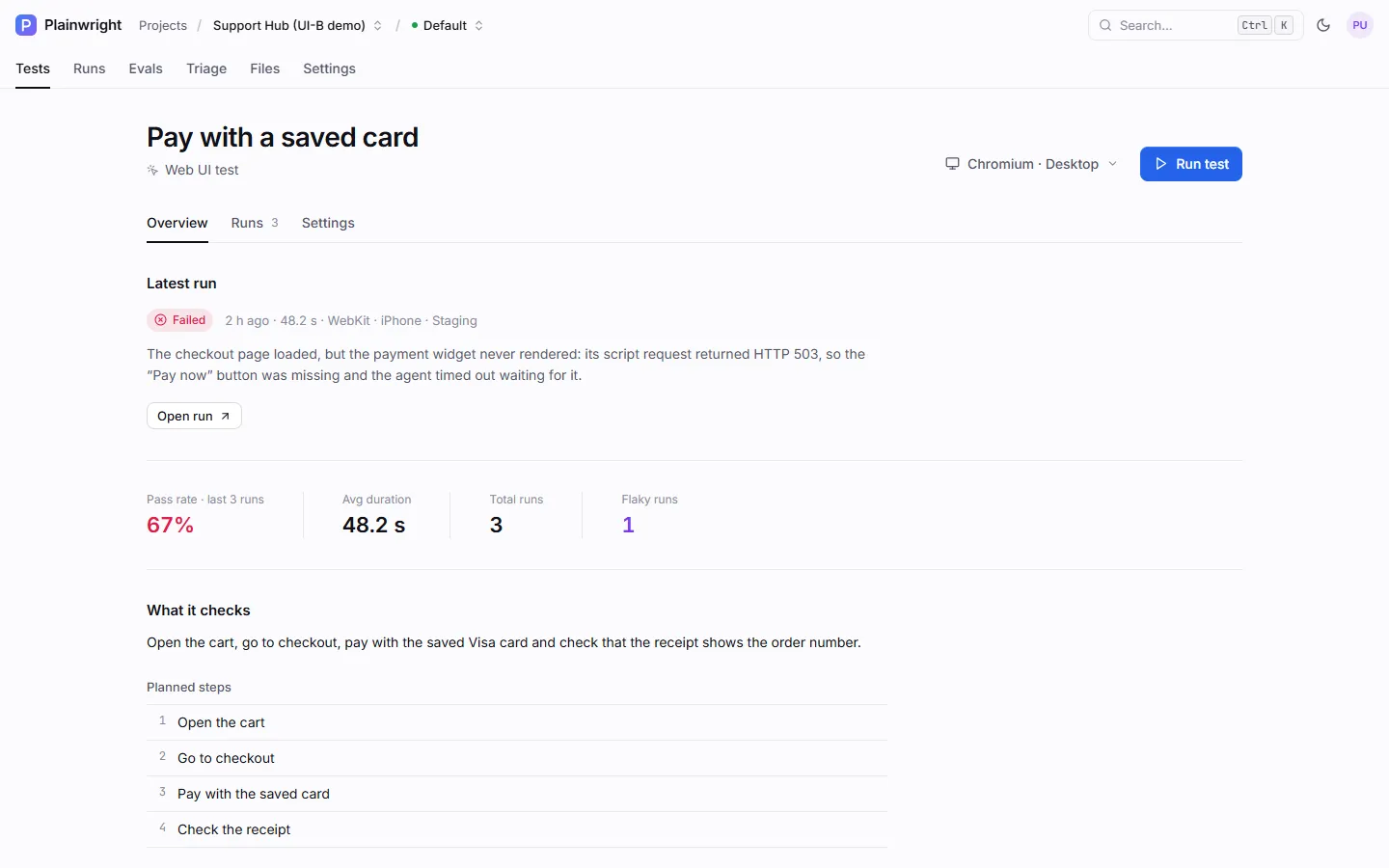
Section titled “Results”A finished run shows:
- Status:
passed,failedorerror(the test couldn’t execute), plus Flaky when it passed on a retry and Blocked when a CAPTCHA stopped it. - Steps: what the agent did and checked, each marked passed or failed.
- Evidence: a screenshot after each action, the final screenshot, browser console output and network requests.
- Visual and assertion results when those checks are on.
- A plain-English explanation for failures, plus on-demand root cause and run chat.
See Runs and results for the full run page.
Test settings
Section titled “Test settings”These fields of a test apply to UI tests. Everything except natural_language is optional.
| Field | Default | Description |
|---|---|---|
natural_language |
(required) | What the test should do, in plain English. May contain {{secrets.NAME}} placeholders. |
assertions |
[] |
Up to 20 plain-English checks (500 characters each) judged after a passing run. |
visual_regression |
false |
Compare the final screenshot with the approved baseline. |
auth_state_id |
null |
A saved login to start from. |
trials |
1 |
Run 1–10 times and pass on the pass rate. See Trials, thresholds and cost. |
retries |
null |
0–5 automatic retries on failure. null uses the project default. See Retries. |
quarantined |
false |
Keep running, but never fail a CI gate or alert. |
schedule_cron |
null |
A 5-field cron expression in UTC. See Scheduling. |
config.visual_threshold |
0.5 |
Percent of pixels allowed to differ from the baseline. |
config.visual_ignore |
[] |
Rectangles to ignore in the visual comparison. |
config.visual_tolerance |
16 |
Per-channel colour difference (0–255) still counted as the same pixel. |
config.save_auth_state_id |
(unset) | Save the browser session into this saved login after every passing run. |
Create and run a UI test with the API
Section titled “Create and run a UI test with the API”Everything in the app is also available over the REST API. These examples sign in, create a UI test in a module and queue a Firefox run on an iPhone-sized window.
PW=http://localhost:8080TOKEN=$(curl -s -X POST "$PW/api/auth/login" \  -d "username=you@example.com" -d "password=your-password" | jq -r .access_token)
# Create the test (copy the module id from the board's URL or GET /api/modules/project/<project-id>)TEST_ID=$(curl -s -X POST "$PW/api/test-cases/" \  -H "Authorization: Bearer $TOKEN" -H "Content-Type: application/json" \  -d '{    "module_id": "MODULE_ID",    "name": "Checkout shows the order number",    "kind": "ui",    "natural_language": "Add any product to the cart, check out as a guest and verify the confirmation page shows an order number.",    "assertions": ["The confirmation page shows an order number", "No error message is visible"]  }' | jq -r .id)
# Queue a runcurl -s -X POST "$PW/api/runs/trigger/$TEST_ID?browser=firefox&device=iphone" \ -H "Authorization: Bearer $TOKEN"$PW = "http://localhost:8080"$TOKEN = (Invoke-RestMethod -Method Post "$PW/api/auth/login" ` -Body @{ username = "you@example.com"; password = "your-password" }).access_token$H = @{ Authorization = "Bearer $TOKEN" }
# Create the test$body = @{ module_id = "MODULE_ID" name = "Checkout shows the order number" kind = "ui" natural_language = "Add any product to the cart, check out as a guest and verify the confirmation page shows an order number." assertions = @("The confirmation page shows an order number", "No error message is visible")} | ConvertTo-Json$test = Invoke-RestMethod -Method Post "$PW/api/test-cases/" -Headers $H -ContentType "application/json" -Body $body
# Queue a runInvoke-RestMethod -Method Post "$PW/api/runs/trigger/$($test.id)?browser=firefox&device=iphone" -Headers $HThe trigger also accepts environment_id. It returns the new run. Poll GET /api/runs/<run-id> until status is
no longer pending or running, or stream live events from GET /api/runs/<run-id>/stream.