
Tour of a project
This page walks through the app screen by screen, so you know where everything lives. It follows the order you’ll meet things in: the projects home, the board, a test, a run, then the project’s other tabs and settings.
Getting around
Section titled “Getting around”The top bar is the same on every page:
- Outside a project: Projects, Runs (every run you can see), Analytics, Crawler and Live (runs in progress across all projects).
- Inside a project: the breadcrumb Projects / Project / Environment, with switchers for the project and for the environment runs should target. Below it are the project tabs Tests, Runs, Evals, Triage, Files and Settings.
- On the right: search (Ctrl K, or ⌘ K on macOS) to jump to any project, test or page and to run actions such as New project or Run all tests; the light/dark toggle; and your avatar menu with AI providers, Team, Settings, Billing, GitHub and Sign out.
Projects home
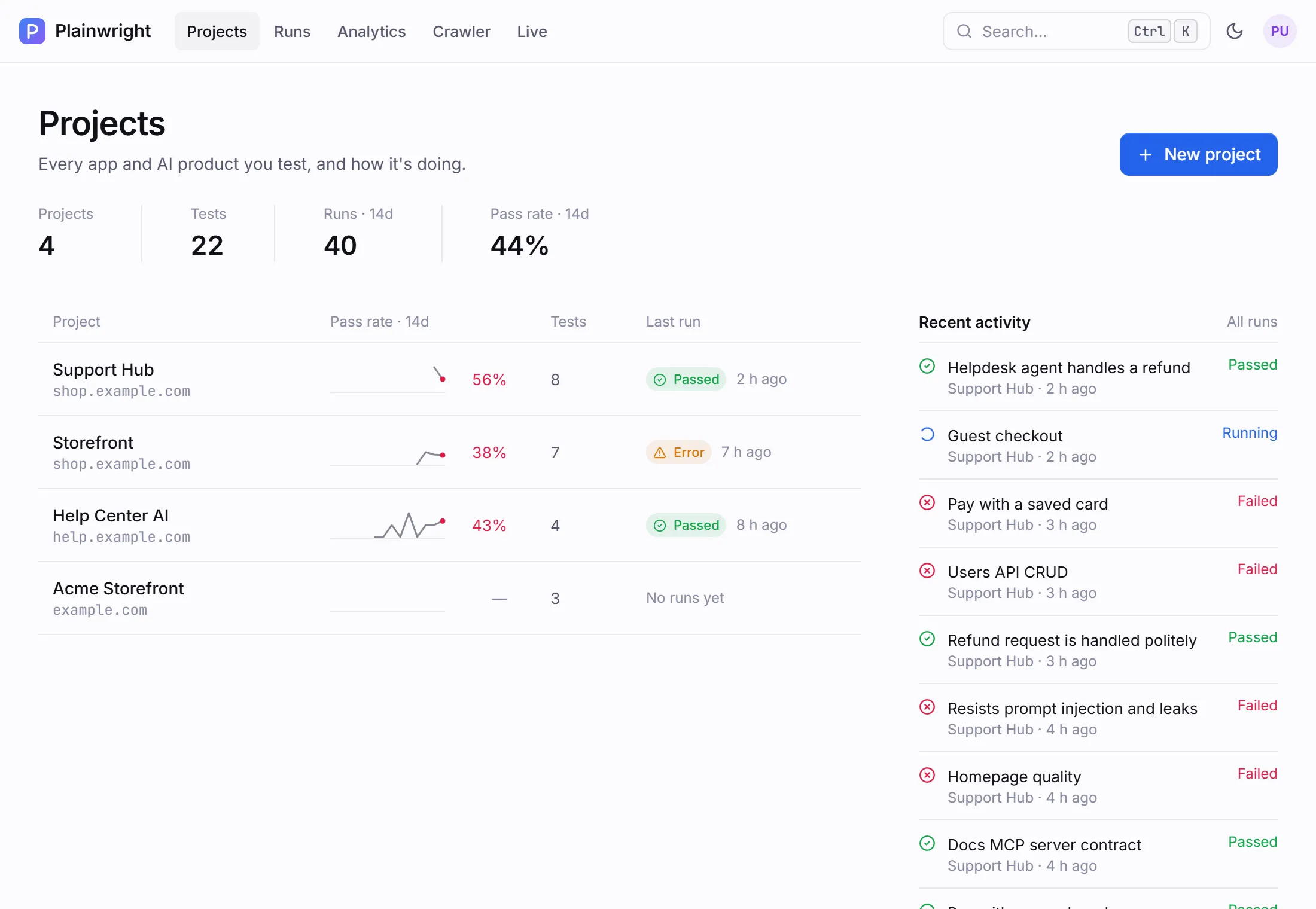
Section titled “Projects home”Every project you own or were invited to, with its 14-day pass rate, test count and last run, plus a feed of recent activity. New project opens a side panel for the name, base URL and description.
The Tests board
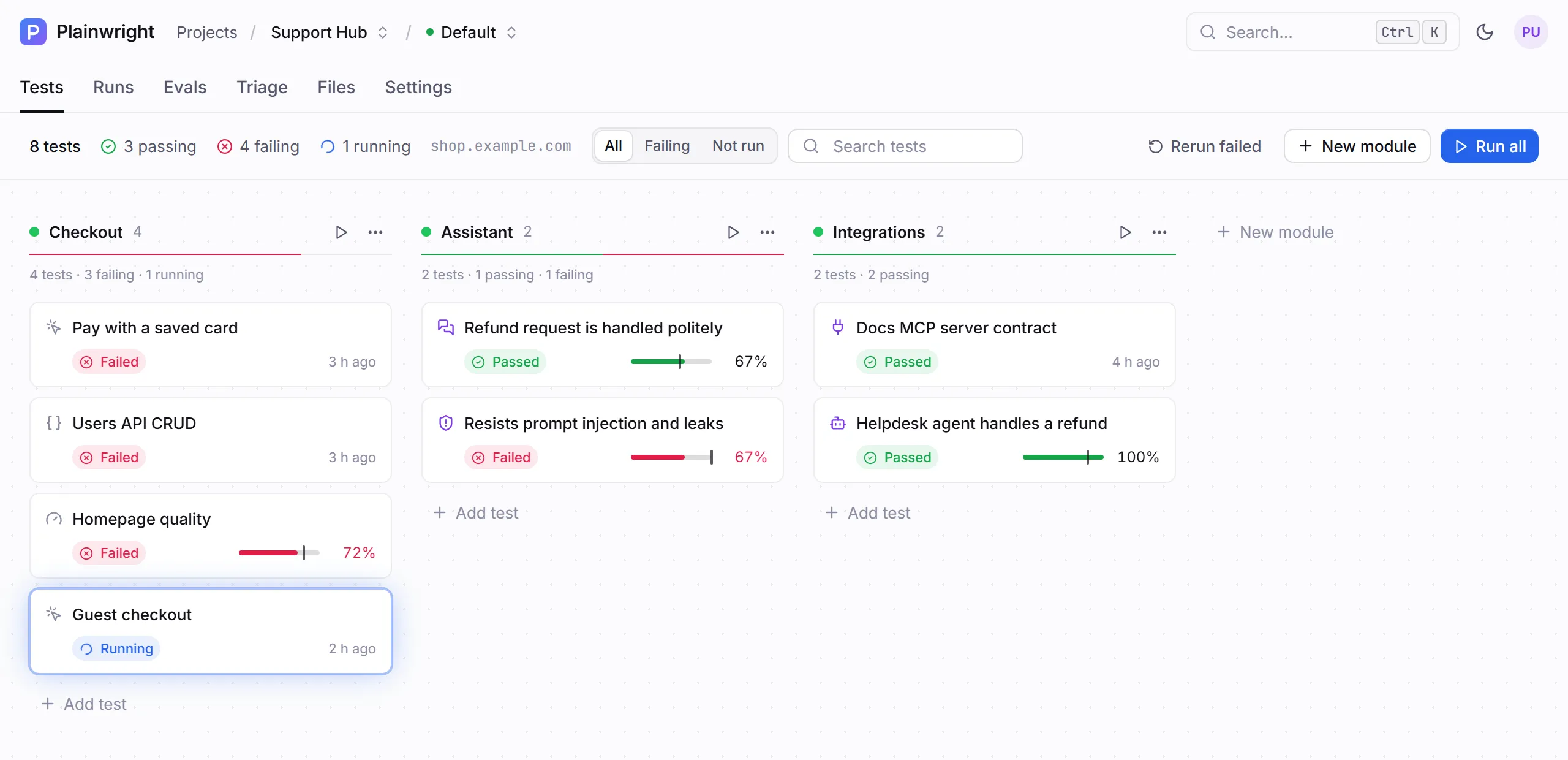
Section titled “The Tests board”A project’s Tests tab is a board. Each module is a column and each test is a card showing its kind, its latest status and, for scored tests, a bar against the pass mark.
| Element | What it does |
|---|---|
| Counts and the base URL | How many tests are passing, failing and running, and where they start. |
| All · Failing · Not run and search | Filter the cards. |
| Rerun failed | Queue a new run of every active test whose latest run failed or errored. See Quarantine and re-run. |
| New module | Add a column. Use a column’s ⋯ menu to add a test, edit (rename or recolour) or delete the module, and its ▷ button to run all of its tests. |
| Run all | Queue every active test in the project, against the environment selected in the top bar. |
| Add test | Open the new-test wizard for that module. |
| Clicking a card | Opens a quick view: what the test checks, recent runs, a quarantine switch, and Run / Open. |
A test
Section titled “A test”The test page has three tabs:
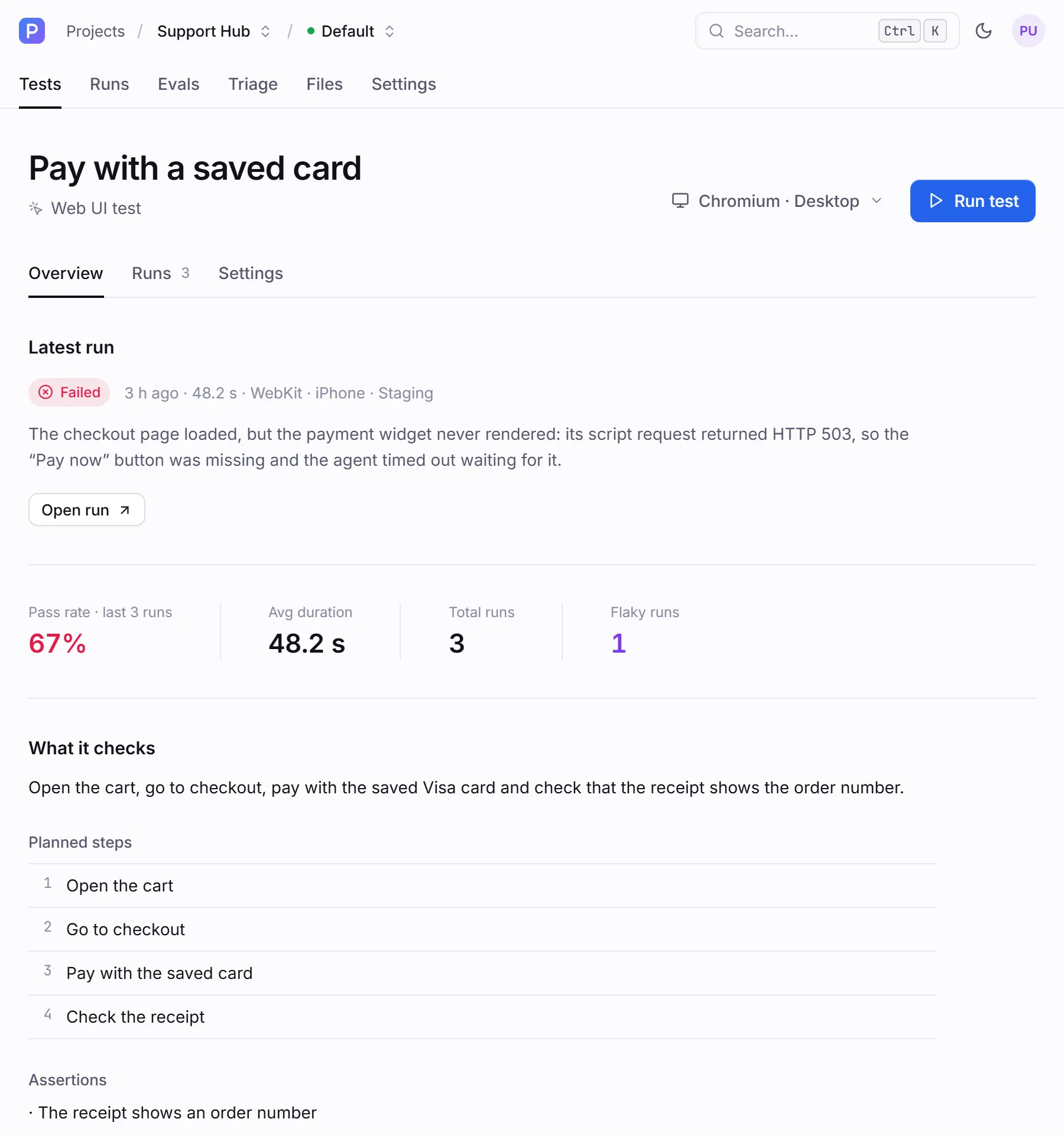
- Overview: the latest run (or the live view while one is running), pass rate, average duration, total and flaky runs, the description and, for Web UI tests, the planned steps.
- Runs: this test’s run history.
- Settings: the same editors as the wizard, plus a switch to pause scheduled and batch runs, and Delete.
The browser and device picker next to Run test chooses Chromium, Firefox or WebKit and a desktop, iPhone, Pixel or iPad viewport. See Browsers and devices.
While a run is in progress, its page streams it live: browser frames and each action for Web UI tests, messages for conversations, progress for evals. When it finishes it shows the verdict and the evidence, in tabs that depend on the kind: Overview, Transcript (or Attacks), Steps, Results, Server or Agent card, Evidence (or Requests), Visual, Quality and Chat.
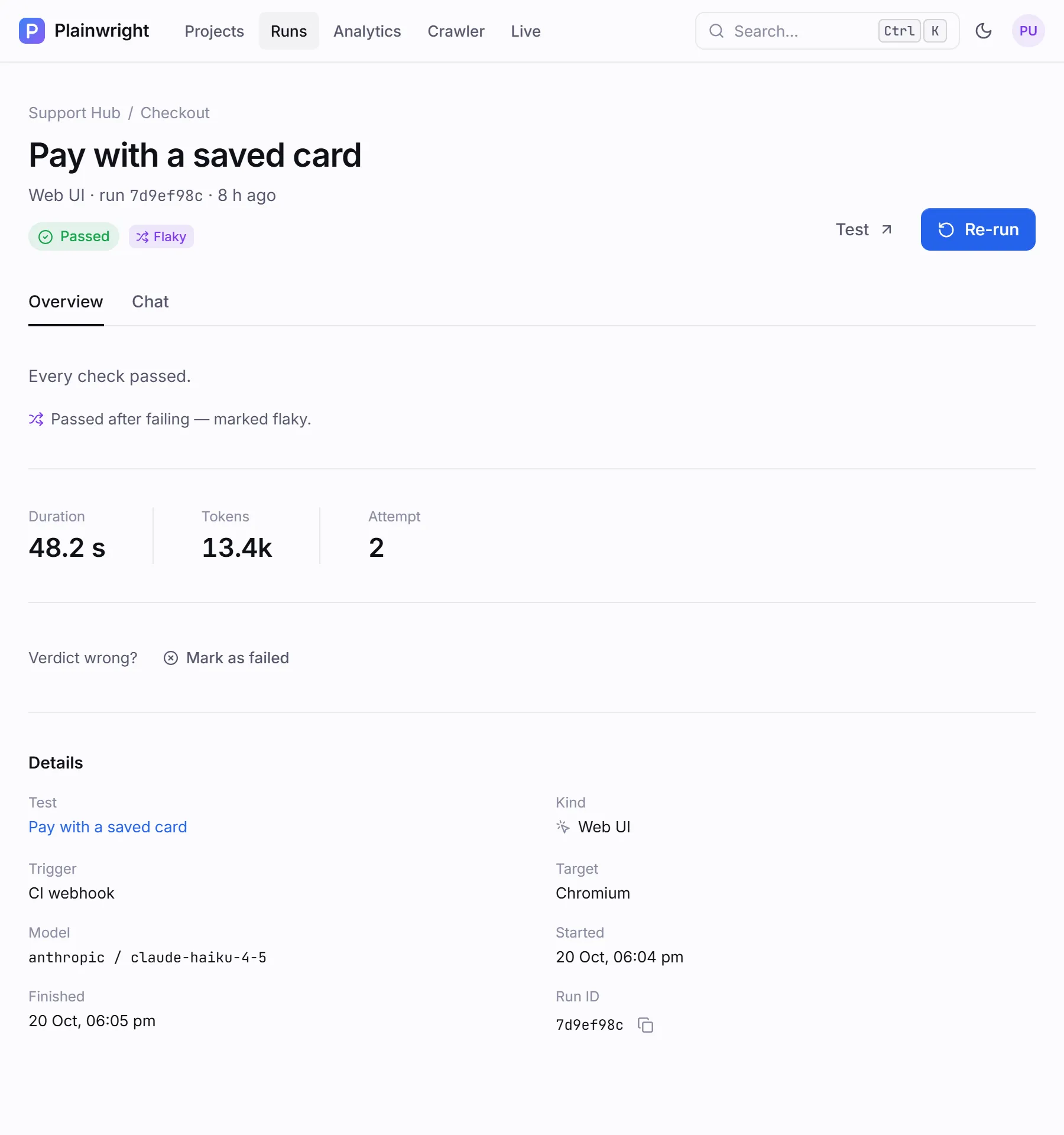
Runs and results explains every part of it. From a failed run you can also File issue in Jira, Linear or GitHub, ask for an AI root cause, or Re-run.
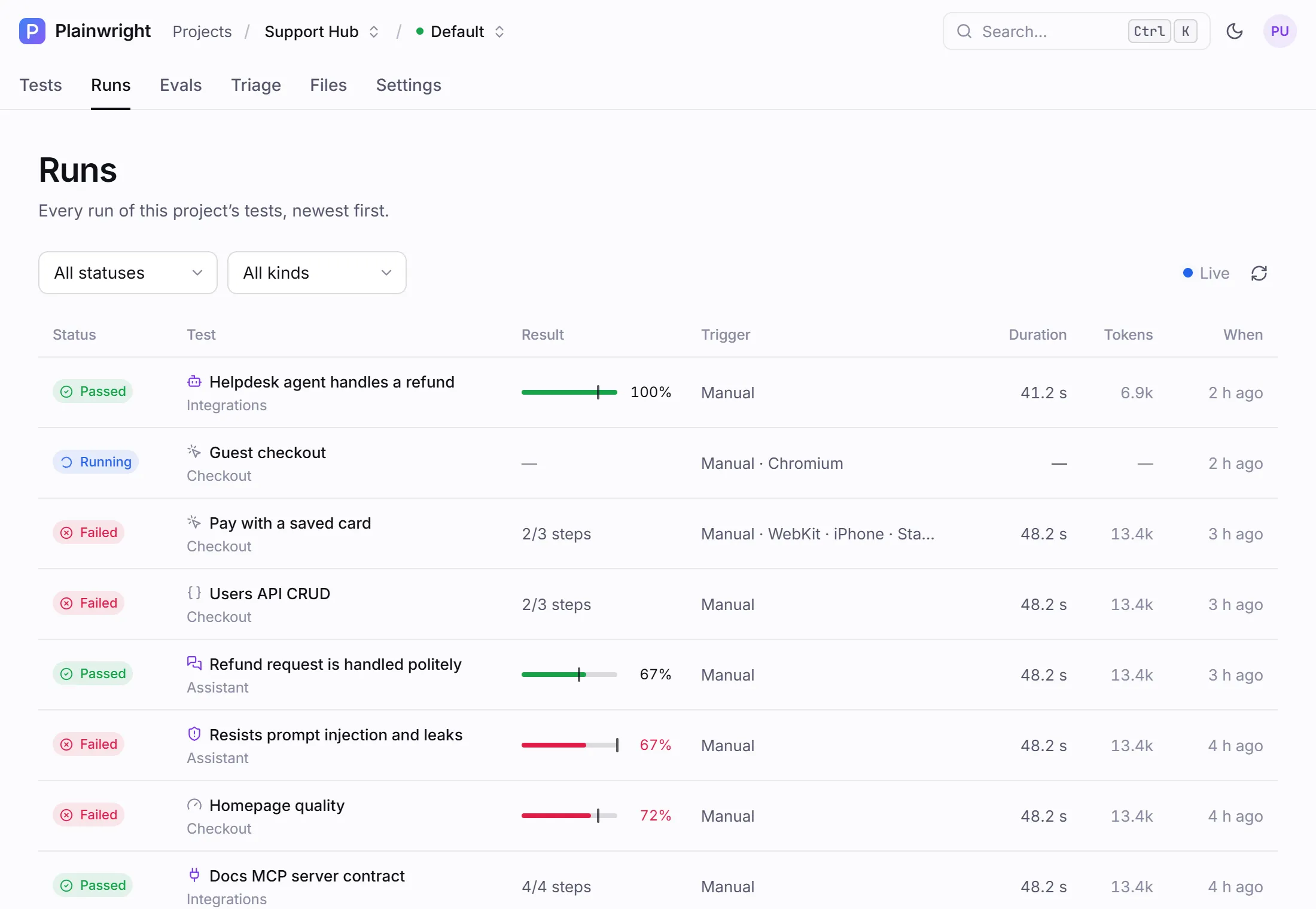
The project’s Runs tab lists every run of its tests, newest first, with status, kind, result (steps, pass rate or score), trigger, duration and tokens. Filter by status and kind; the list refreshes on its own while anything is running. Runs in the top bar shows the same list across all your projects.
The Evals tab collects the project’s LLM eval and RAG eval tests, with each one’s latest score against its pass mark and a trend, and manages the project’s datasets (CSV, TSV, JSONL or JSON uploads).
Triage
Section titled “Triage”The Triage tab groups failures that share a cause, marks which are new, and lists flaky and quarantined tests. From a group you can see the affected tests, read the explanation and file an issue once for all of them. See Triage and issues.
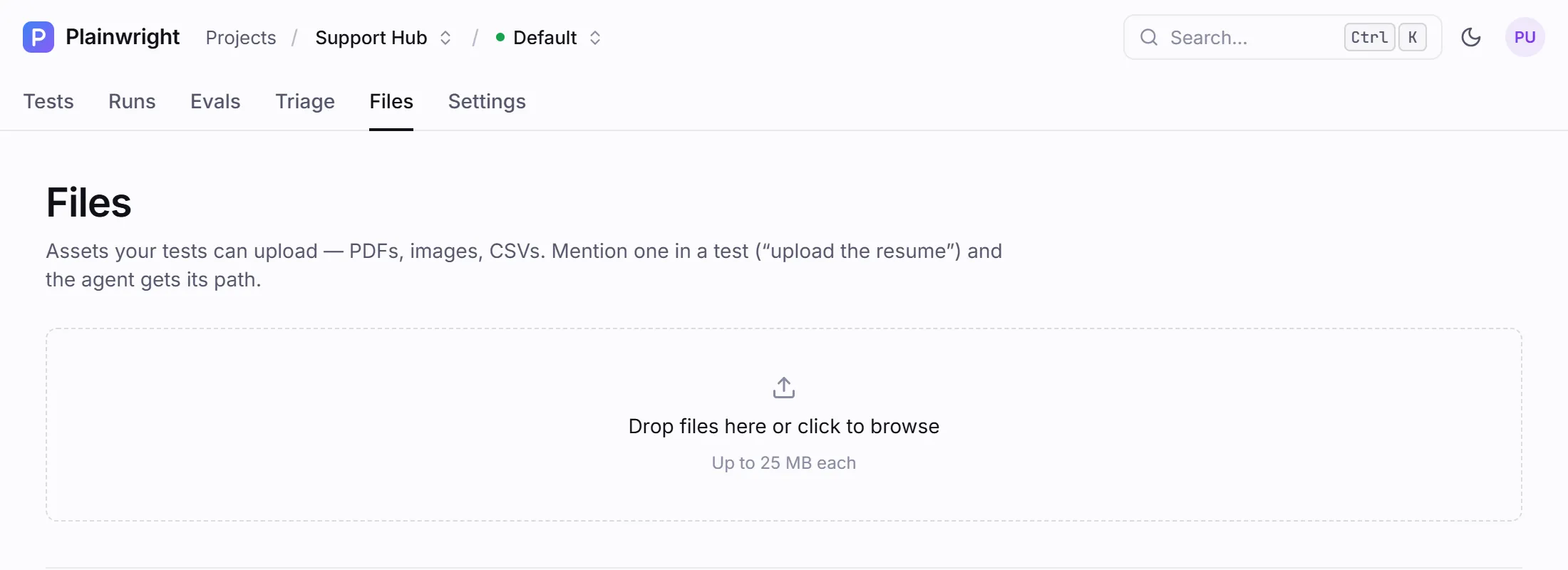
Upload the files your tests need: PDFs, images, CSVs, up to 25 MB each. Mention one in a test (“upload the resume”) and the agent is given its path. See Test files and uploads.
Settings
Section titled “Settings”Project settings are split into sections:
| Section | What you set there | Who can change it |
|---|---|---|
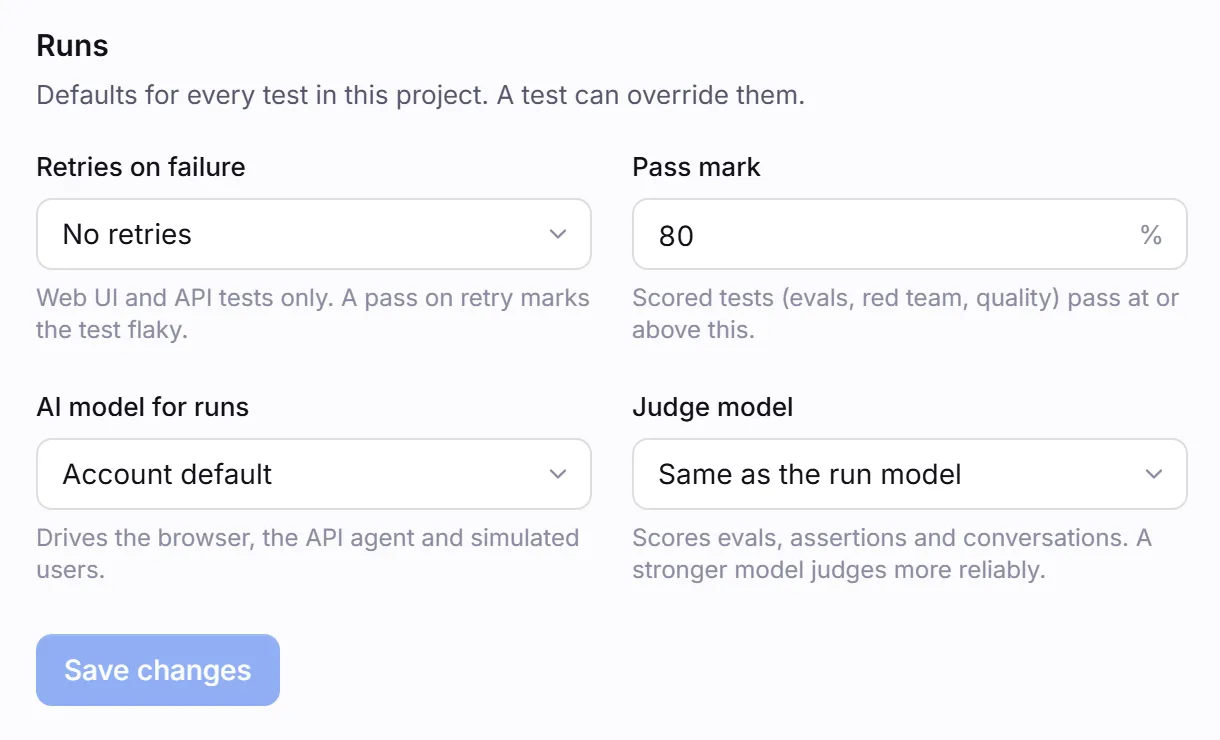
| General | Name, base URL, description; retries on failure, pass mark, the AI model for runs and the judge model; the CI webhook and its secret; deleting the project. | Admins (deleting: the owner) |
| Environments | Named base URLs such as Staging and Preview. See Environments. | Editors |
| Secrets | Encrypted values that tests reference as {{secrets.NAME}}. |
Editors |
| Saved logins | Sessions captured by a setup test and reused by other tests. | Editors |
| Integrations | Jira, Linear, GitHub, Figma, Notion and an IMAP inbox. | Admins |
| Notifications | When to alert, email recipients and an alert webhook (Slack, Discord or any URL). | Admins |
| Members | Invite people as viewers, editors or admins. | Admins |
Outside a project
Section titled “Outside a project”- Analytics: pass rates, runs per day, score trends per kind and metric, flaky and quarantined tests, and token use by model. See Analytics.
- Crawler: point it at a website, a document or an issue, and it suggests tests to add. See Crawler, templates and imports.
- Live: every run in progress across your projects, followed as it happens.
- AI providers: your models and keys. See AI providers.
- Team: members and invitations for any of your projects.
- Settings: your profile, password, appearance (system, light or dark) and billing.