
Figma and Notion imports
Your designs and specs already describe what the app should do. Connect Figma or Notion to a project, paste a link, and Plainwright drafts plain-English tests from it: one AI call reads the frames’ text or the page’s content and proposes tests you can review before anything is created.
Figma and Notion are import-only sources. To file failures as issues, connect Jira, Linear or GitHub.
Connect Figma or Notion
Section titled “Connect Figma or Notion”Open the project’s Settings → Integrations → Docs & designs (admin role).
- In Figma, open Settings → Security → Personal access tokens and create a token with
read access to file content. It starts with
figd_. - In Plainwright, click Figma, paste the token into Personal access token, and click Test connection. It should say Connected as your Figma handle.
- Click Connect.
The token sees every file your Figma account can open.
- In Notion, create an internal integration (Settings → Integrations, or
notion.so/profile/integrations) and copy its
Internal Integration Secret (
ntn_…). - Share each page you want to import with the integration: open the page, choose ••• → Connections, and add your integration. The integration can only read pages shared with it.
- In Plainwright, click Notion, paste the secret into Integration secret, click Test connection, then Connect.
Import tests
Section titled “Import tests”- In a module, click New test, then Import on the wizard’s first step. You can also use the Crawler page and choose issue or design.
- Choose Figma or Notion (only connected sources are listed) and paste a link.
- Click Suggest tests. After one AI call you get up to five drafts.
- Open a draft to read its full plain-English steps. Untick the ones you don’t want.
- Click Add N tests. They are created as Web UI tests in the module.
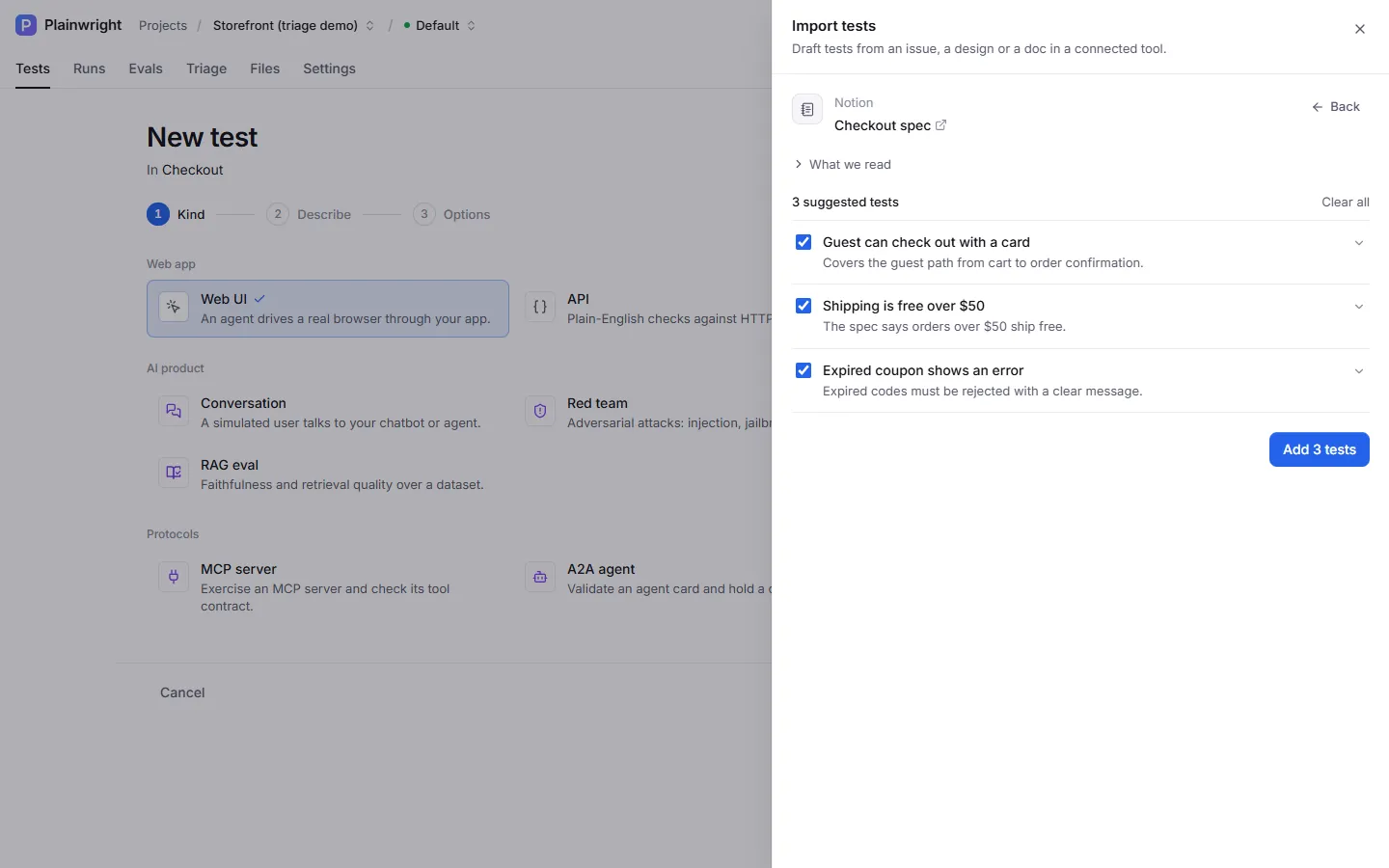
Every imported test records its origin (source is figma or notion, source_ref is the link),
so you can find the design or spec a test came from.
What gets read
Section titled “What gets read”| You paste | Plainwright reads |
|---|---|
A file link: https://www.figma.com/design/<key>/… (/file/, /proto/, /board/ and /slides/ links also work), or a bare file key |
Every page, its top-level frames, and the text layers inside them |
A link to one frame (with ?node-id=12-34) |
Just that frame and its text layers |
Plainwright turns the design into an outline (# Page, ## frame, - text) of up to 60 frames
and 40 text layers per frame. Hidden layers are skipped. The design’s words are what the AI works
from, so frames with real copy (labels, buttons, error messages) give the best tests.
| You paste | Plainwright reads |
|---|---|
A page link: https://www.notion.so/<workspace>/<Title>-<32-character id>, or the page ID |
The page title and its blocks, including nested blocks two levels deep |
Headings, lists, to-dos (with their checked state), quotes, callouts, toggles, code blocks and table rows are kept as text. Sub-pages and databases are listed by title but not opened. Up to 300 blocks are read.
The text sent to the AI is capped at 12,000 characters. Project secret
values that appear in it are replaced with ••••, and the project’s base URL is added so the drafts
know which app they test.
From the API
Section titled “From the API”# Draft tests from a Notion page (editor role, one AI call)curl -fsS -X POST "$PLAINWRIGHT_URL/api/connectors/preview" \ -H "Authorization: Bearer $PLAINWRIGHT_TOKEN" -H "Content-Type: application/json" \ -d '{"project_id": "'"$PROJECT_ID"'", "kind": "notion", "ref": "https://www.notion.so/acme/Checkout-spec-0f3c2a9b8e7d4c6a9b1e2d3f4a5b6c7d", "count": 5}'The response has source (title, URL and an excerpt of what was read) and suggestions. Create the
ones you want with POST /api/crawler/create and {"module_id": "…", "suggestions": [...]}, exactly
as for Jira, Linear and GitHub. count is 1–10.
Troubleshooting
Section titled “Troubleshooting”| Message | Fix |
|---|---|
| Notion: page not found — open the page in Notion, choose ••• → Connections and add your integration | The page isn’t shared with the integration. Share it (sharing a parent page also shares its sub-pages). |
| Notion: that page has no readable content | The page is empty, or holds only embeds or databases. Import a page with written content. |
| Figma: no frames or text layers found in that design | The link points at an empty page, or every layer is hidden. Link to a frame that has text. |
| Paste a Figma file link (figma.com/design/…) | The link isn’t a Figma file URL. Copy it from Share → Copy link. |
| The AI could not produce suggestions from this source | The project’s AI provider failed, or the content was too thin. Check AI providers, or try a more detailed page. |