
Assertions and visual regression
A UI test has two optional checks that run after the agent reports a pass:
- Assertions are plain-English statements about the final page, such as “An order number is shown”. An AI judge checks them against the final screenshot and page text.
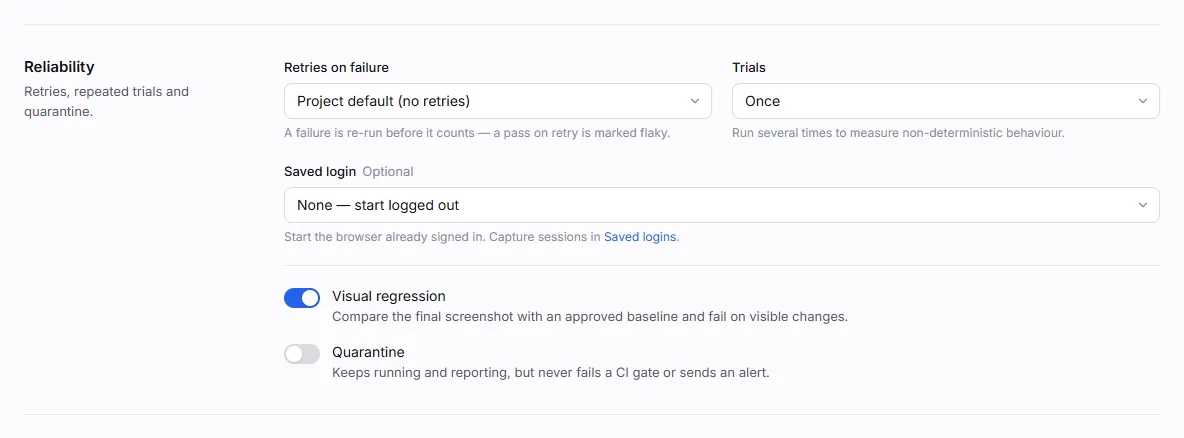
- Visual regression compares the final screenshot with an approved baseline, pixel by pixel, and fails when too much of it changed. No AI is involved.
Both are set in a UI test’s Checks section (in the new-test wizard under Options, or on the test’s Settings tab). Use assertions to pin down what must be true; use visual regression to catch what changed by accident.
Assertions
Section titled “Assertions”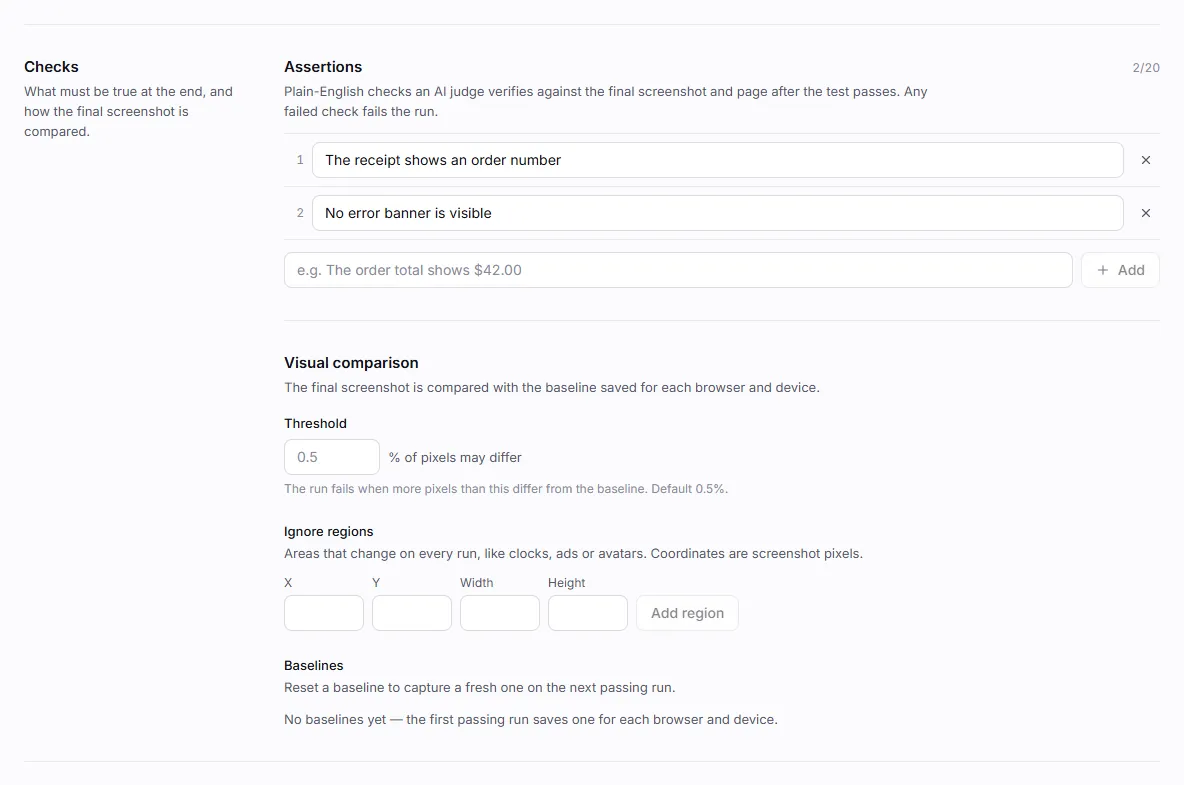
Add assertions
Section titled “Add assertions”-
Open the test’s Settings tab (or the Options step when you create the test).
-
Under Checks → Assertions, type a statement and press Enter or click Add. Add up to 20; each can be up to 500 characters.
-
Click Save changes, then run the test.
Good assertions describe something visible and unambiguous on the final screen:
The page heading is "Order confirmed"An order number is shownThe cart icon shows 0 itemsNo error message is visibleThe user's name, "Ada", appears in the headerYou can reference a secret: “The header shows the email {{secrets.QA_EMAIL}}”. The judge sees the value masked
as •••• and is told that the placeholder refers to it.
How assertions are judged
Section titled “How assertions are judged”When the agent reports passed, Plainwright:
- reads the page one last time on the still-open browser (its text, up to 8,000 characters);
- takes the final screenshot, scaled down to at most 1,568 pixels on the longest edge;
- makes one judge call with all assertions, the screenshot, the page text and the agent’s own report. The judge is told to treat the screenshot and page text as the source of truth and the agent’s report as context only;
- records a verdict, a score and a short reason for every assertion.
If any assertion fails, the run fails with Assertion failed: <first failed assertion> — <reason> (and N more).
If the judge’s reply can’t be read, the run becomes error, never a silent pass. If the agent’s flow
itself failed, assertions are skipped and shown as not checked.
The judge is the project’s Judge model (Settings → General). When none is set, it’s the cheap model of the
run model’s provider, such as claude-haiku-5-5 (see AI providers).
Its tokens and estimated cost are added to the run’s totals.
When a secret value is visible on the final page, the screenshot is not sent to the judge, because an image can’t be scrubbed. The judge then decides from the scrubbed page text alone, and the run’s assertion evidence says why the image was withheld.
Assertions or steps?
Section titled “Assertions or steps?”| Put it in the description when… | Put it in an assertion when… |
|---|---|
| it’s part of the journey (“verify the coupon field accepts SAVE10”) | it’s about the final screen |
| the agent must react to it (“if a cookie banner appears, accept it”) | it’s visual: layout, colour, an image, a chart |
| it happens on an intermediate page | you want a per-check verdict and reason in the report |
Visual regression
Section titled “Visual regression”Visual regression catches the changes nobody asked for: a broken stylesheet, a missing image, a shifted layout.
Turn it on
Section titled “Turn it on”-
On the test’s Settings tab, under Reliability, switch on Visual regression.
-
Under Checks → Visual comparison, set the Threshold: the percentage of pixels that may differ. The default is 0.5%.
-
Save and run the test. The first passing run saves its final screenshot as the baseline and passes.
-
Every later passing run is compared with that baseline.
Baselines
Section titled “Baselines”A test keeps one baseline per browser and device, for example Chromium · Desktop and WebKit · iPhone. The first passing run for each combination creates its baseline. Baselines are listed under Checks → Visual comparison → Baselines, with who approved them and when. Reset a baseline to capture a fresh one on the next passing run.
How the comparison works
Section titled “How the comparison works”- Only passing runs are compared. A failed run’s final screen isn’t a reliable reference, so the visual check is skipped.
- The final screenshot (the browser viewport at the end of the run) is compared with the baseline pixel by pixel. A pixel counts as changed when any colour channel differs by more than the tolerance, 16 out of 255 by default, which absorbs anti-aliasing and font-rendering noise.
- Ignore regions are left out of the comparison.
- If the two images have different sizes, the area outside their overlap counts as changed.
- The result is the percentage of changed pixels. Above the threshold, the run fails with “Visual change: X% of pixels differ from the baseline (threshold Y%).” At or below it, the run passes as a match.
A diff image is saved whenever any pixel changed: the current screenshot faded, changed pixels in red and ignored regions in blue.
Review and approve a change
Section titled “Review and approve a change”Open the run and its Visual tab. Switch between Swipe (drag a divider across baseline and current), Side by side and Diff.
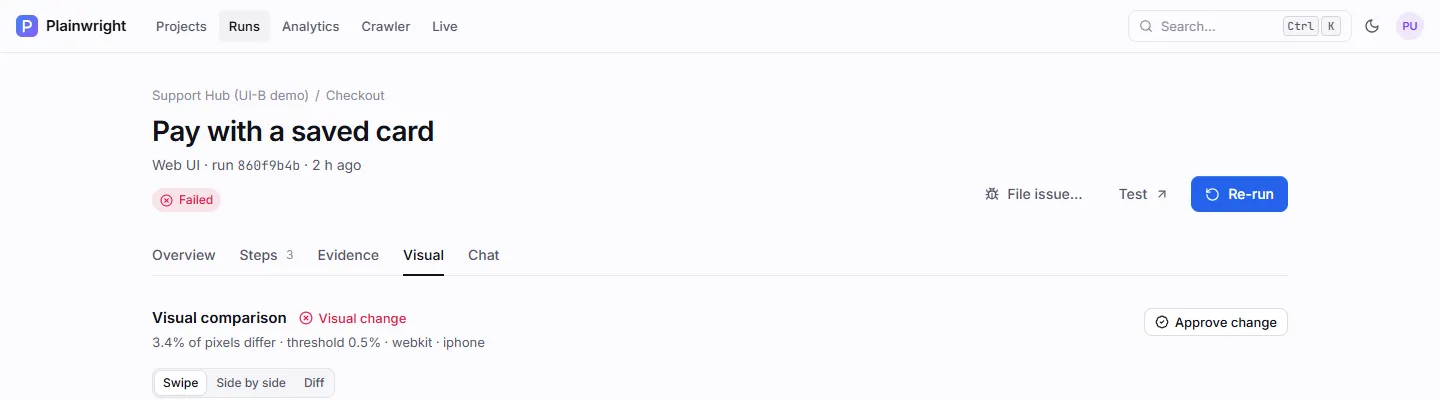
- Approve change makes this run’s screenshot the new baseline. If the visual change was the run’s only failure, the run is also marked as passed with the note “Visual change approved as the new baseline”, so CI gates and dashboards count it as accepted. You need the editor role.
- Approve baseline appears on a run that created a new baseline, to record that a person checked it.
- Update baseline appears on a matching run with small differences, to refresh the reference.
When an approval marks a run as passed, it is recorded as a verdict override, so the run shows who approved it and when, and you can clear it like any other override.
Ignore regions
Section titled “Ignore regions”Mask the parts of the screen that change on every run: clocks, carousels, ads, avatars, “last updated” times.
- Draw them. Once a test has a baseline, drag on the baseline image under Ignore regions to add a rectangle.
- Type them. Enter X, Y, Width and Height in screenshot pixels and click Add region.
Up to 50 regions. In the test’s config they look like this:
{ "visual_threshold": 1.0, "visual_tolerance": 24, "visual_ignore": [ { "x": 0, "y": 0, "width": 1280, "height": 64 }, { "x": "70%", "y": 120, "width": "30%", "height": 300 } ]}| Key | Default | Description |
|---|---|---|
visual_threshold |
0.5 |
Percent of pixels (0–100) that may differ. |
visual_tolerance |
16 |
Per-channel colour difference, 0–255, still counted as the same. A value up to 1 is read as a fraction of 255. Not shown in the app. |
visual_ignore |
[] |
Rectangles {x, y, width, height} (or w/h, or [x, y, w, h]). Each value is pixels or a percentage string of the image size. |
Tips for stable comparisons
Section titled “Tips for stable comparisons”- Compare a stable screen. End the test on a page whose content doesn’t depend on time or random data, or mask those parts.
- Wait for the page to settle. Add “wait until the product images have loaded” at the end of the description.
- Raise the threshold for busy pages. 1–2% suits pages with lots of anti-aliased text.
- One device per baseline. Running the same test on several devices is fine; each gets its own baseline.
With the API
Section titled “With the API”Assertions and visual regression are fields of the test:
curl -s -X PUT "$PW/api/test-cases/TEST_ID" \ -H "Authorization: Bearer $TOKEN" -H "Content-Type: application/json" \ -d '{ "assertions": ["An order number is shown", "No error message is visible"], "visual_regression": true, "config": { "visual_threshold": 1.0 } }'PUT replaces the whole config object, so send every config key you want to keep.
| Endpoint | Role | Description |
|---|---|---|
GET /api/visual/test-cases/{test_id}/baselines |
viewer | List a test’s baselines. |
POST /api/visual/runs/{run_id}/approve |
editor | Make the run’s screenshot the baseline for its browser and device. |
DELETE /api/visual/baselines/{baseline_id} |
editor | Reset a baseline. |
A run’s visual field has the comparison result (status is new_baseline, match, mismatch or skipped, plus
mismatch_pct, threshold and the baseline, current and diff image URLs). Assertion results are in
extras.assertions.