
Secrets and saved logins
Tests often need a password, an API token or a 2FA key. Don’t write them into the test. Store them once in the
project’s secrets vault and write a placeholder such as {{secrets.ADMIN_PASSWORD}} instead. The AI model never
sees the value, and run logs show ••••.
When many tests need to be signed in, a saved login goes further: one setup test signs in, Plainwright saves the browser session, and other UI tests start already signed in.
Secrets
Section titled “Secrets”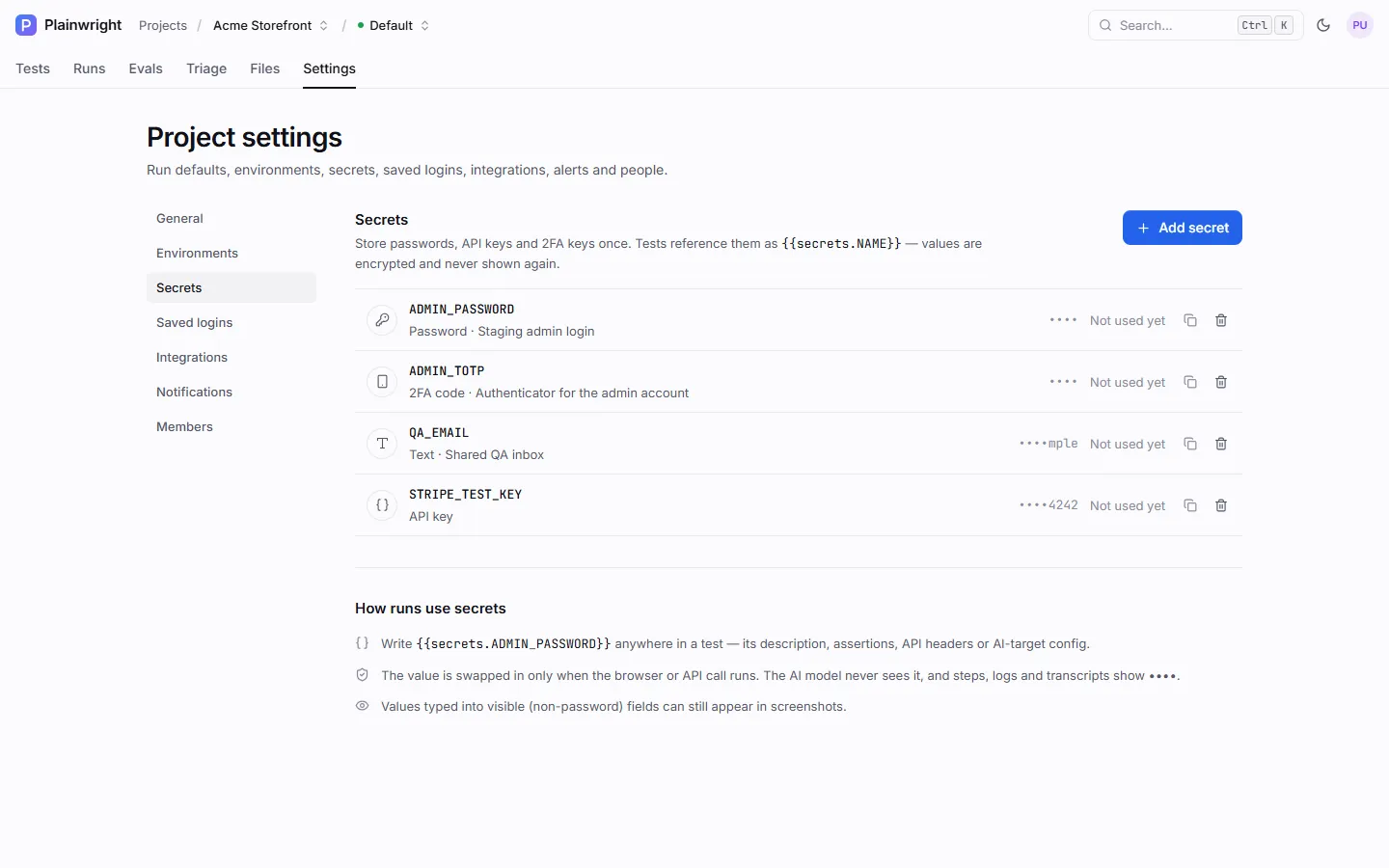
Add a secret
Section titled “Add a secret”-
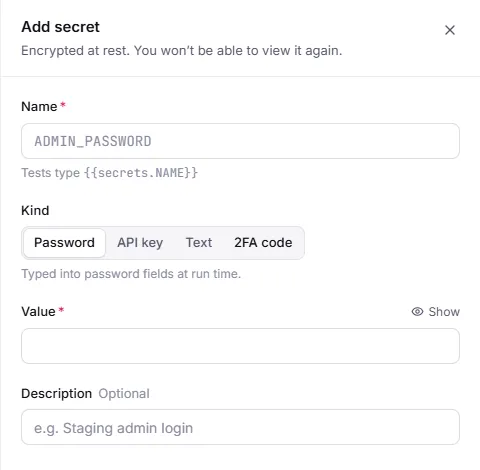
Open the project’s Settings → Secrets and click Add secret.
-
Enter a Name: capital letters, digits and
_, starting with a letter, up to 64 characters (for exampleADMIN_PASSWORD). Names are unique within the project. -
Choose the Kind (see below) and paste the Value. Add a Description if it helps: the model sees the description, so “Staging admin login” tells it when to use the secret.
-
Click Add secret. The value is encrypted at once and can’t be shown again; you can only replace it.
| Kind | Value | Notes |
|---|---|---|
Password (password) |
any text, at least 4 characters | The usual choice for passwords. |
API key (api_key) |
any text, at least 4 characters | Editors see •••• plus the last 4 characters when the value has 8 or more. |
Text (text) |
any text | For values that aren’t secret but vary, like a test account’s email. Editors see the last 4 characters too. |
2FA code (totp) |
an authenticator key (base32) or an otpauth:// URI |
The placeholder types the current 6-digit code. See One-time codes. |
Values can be up to 16 KB. Viewers see secret names, kinds and descriptions only; editors also see the masked value. The list shows how many tests use each secret.
Use a secret
Section titled “Use a secret”Write the placeholder anywhere a test takes text:
- a UI test’s description: Log in as
{{secrets.QA_EMAIL}}with the password{{secrets.QA_PASSWORD}}; - assertions;
- API test base URLs, default headers, bodies and query strings;
- the HTTP targets of AI product tests (URLs, headers and body templates);
- template variables.
A name that doesn’t exist in the vault is left exactly as typed, so a typo shows up in the run instead of failing silently.
What the model sees
Section titled “What the model sees”- The prompt lists names, not values. The agent is told which secrets exist, for example
{{secrets.ADMIN_PASSWORD}} (password) — Staging admin login, and to type the literal placeholder wherever one is needed. - The value is swapped in at the last moment. When the agent calls a tool, for example to type into the password field or send an HTTP request, Plainwright replaces placeholders in the tool’s arguments with the real values just before the tool runs.
- Placeholders follow the destination. In a URL the agent opens (
browser_navigate) or an HTTP request it sends (http_request), placeholders are filled in only when the request goes to one of the project’s own hosts: the project URL, its environments, the endpoints configured on its tests, and their subdomains. Anywhere else the literal{{secrets.NAME}}text is sent. A page that tries to talk the agent into sending your token to another site therefore gets the placeholder, not the token. - Everything coming back is masked. Tool results are scrubbed before the model sees them: any secret value in
page text, response bodies or error messages becomes
••••. Scrubbing also catches the encoded forms of a value (JSON and JavaScript string escapes, URL and form encoding, percent escapes in either case, HTML entities) and a value cut off where long text is truncated. - Everything stored is masked. Steps, evidence, transcripts, error messages, explanations and live events are
scrubbed before they are saved or shown. Step descriptions keep the placeholder, so the log reads
type
{{secrets.ADMIN_PASSWORD}}into “Password”.
Two tool families never receive real values: code-running browser tools (browser_evaluate, browser_run_code),
so a malicious page can’t trick the agent into sending a secret elsewhere in one line of JavaScript, and
get_totp_code, which takes a secret’s name.
Encryption and keys
Section titled “Encryption and keys”Secret values are encrypted at rest with a key derived from the server’s SECRET_KEY, the same key that protects
saved AI-provider keys. The backend, worker and scheduler must share the same SECRET_KEY.
If SECRET_KEY is changed by hand, stored secrets can no longer be decrypted. Runs then tell the agent that those
secrets are unavailable, so it reports the problem instead of guessing, and you have to re-enter the values. To
replace the key without losing anything, use the rotation command, which re-encrypts every stored secret, saved
login and provider key under the new key: see
Rotate SECRET_KEY.
With the API
Section titled “With the API”Values are write-only: no endpoint returns them.
# Create (editor)curl -s -X POST "$PW/api/secrets/project/PROJECT_ID" \  -H "Authorization: Bearer $TOKEN" -H "Content-Type: application/json" \  -d '{"name": "API_TOKEN", "kind": "api_key", "value": "paste-the-token-here", "description": "Staging API"}'
# List (names, kinds, masked values, usage)curl -s "$PW/api/secrets/project/PROJECT_ID" -H "Authorization: Bearer $TOKEN"
# Replace the value, or deletecurl -s -X PUT "$PW/api/secrets/SECRET_ID" -H "Authorization: Bearer $TOKEN" \  -H "Content-Type: application/json" -d '{"value": "the-new-token"}'curl -s -X DELETE "$PW/api/secrets/SECRET_ID" -H "Authorization: Bearer $TOKEN"
A duplicate name returns 409; an invalid name, kind or 2FA key returns 400.
Saved logins
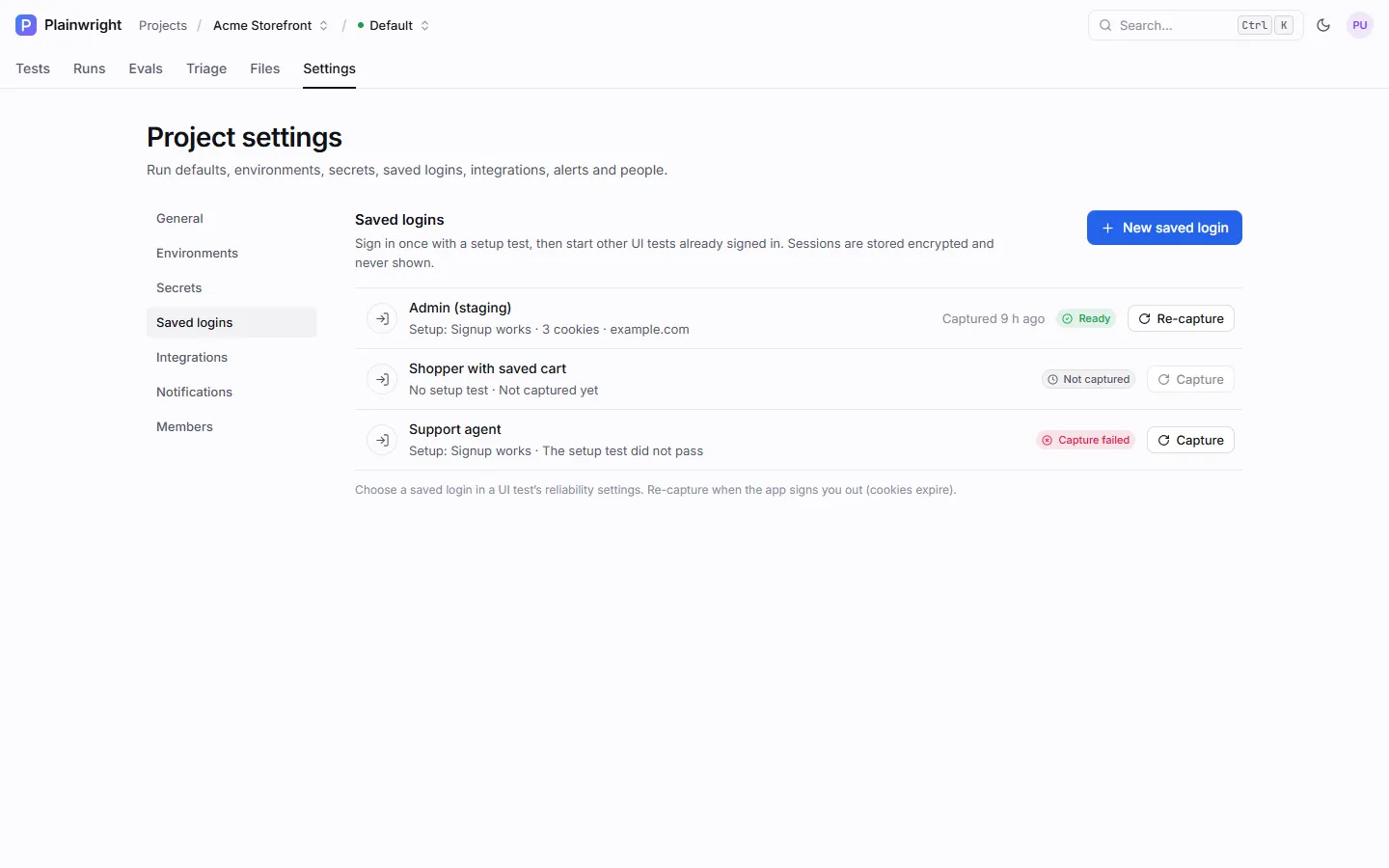
Section titled “Saved logins”A saved login is a browser session captured once and reused. It holds the session’s cookies and the local storage of each site the setup test visited (Playwright’s “storage state”), encrypted at rest.
Set one up
Section titled “Set one up”-
Write a setup test. Create a UI test that signs in and ends signed in, for example:
Go to /login and sign in with the email {{secrets.ADMIN_EMAIL}} and the password {{secrets.ADMIN_PASSWORD}}.Verify the dashboard loads and shows the account menu.Run it once and make sure it passes.
-
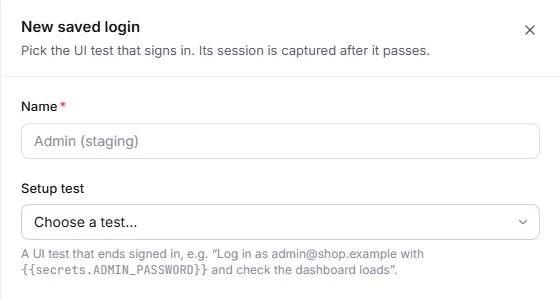
Create the saved login. Open Settings → Saved logins, click New saved login, give it a Name (such as Admin (staging)) and pick the setup test.
-
Capture it. Leave Capture now ticked and click Create & capture, or click Capture in the list later. Plainwright runs the setup test; when it passes, the browser session is saved and the status becomes Ready.
-
Use it. In any UI test of the project, open Settings → Reliability → Saved login and choose it. The next run starts already signed in.
| Status | Meaning |
|---|---|
| Not captured | Created, but no session saved yet. Tests using it run signed out, with a warning in the live log. |
| Capturing | The setup test is running. A second capture is refused until it finishes. |
| Ready | A session is saved. The list shows when it was captured, the cookie count and the domains. |
| Capture failed | The setup test didn’t pass or the session couldn’t be saved. If an earlier capture was ready, it is kept and still used. |
How restore works
Section titled “How restore works”When a test with a saved login starts, Plainwright loads the session into the fresh browser before the agent’s first step: cookies are added to the browser, and each saved site’s local storage is filled in before that site’s own scripts run, so the app boots signed in. No extra page loads are needed.
If restoring fails, or the saved login was deleted or never captured, the test still runs, signed out, and the live log says why.
Keep it fresh
Section titled “Keep it fresh”Sessions expire when your app’s cookies do. When tests start failing on a login page, click Re-capture. You can
automate this by scheduling the setup test’s capture from CI with the API (below), or by setting
config.save_auth_state_id on the setup test so that every passing run of it saves the session again.
Limits
Section titled “Limits”- Only cookies and local storage are saved. Sessions kept in
sessionStorageor IndexedDB are not captured. - A session larger than 4 MB is refused.
- The setup test must be a UI test in the same project.
- Deleting a saved login detaches it from the tests that used it; they run signed out.
- The session is never returned by the API. You see a summary: cookie count, domains, origins with local storage and when the first persistent cookie expires.
With the API
Section titled “With the API”# Create a saved login from a setup testcurl -s -X POST "$PW/api/auth-states/project/PROJECT_ID" \ -H "Authorization: Bearer $TOKEN" -H "Content-Type: application/json" \ -d '{"name": "Admin (staging)", "setup_test_case_id": "SETUP_TEST_ID"}'
# Capture (re-capture) it against an environment; returns the capture runcurl -s -X POST "$PW/api/auth-states/AUTH_STATE_ID/capture?environment_id=ENV_ID" \ -H "Authorization: Bearer $TOKEN"
# Use it in a testcurl -s -X PUT "$PW/api/test-cases/TEST_ID" \ -H "Authorization: Bearer $TOKEN" -H "Content-Type: application/json" \ -d '{"auth_state_id": "AUTH_STATE_ID"}'Capture also accepts browser and device. It returns 400 when no setup test is set and 409 while a capture is
already running. Send "auth_state_id": null to detach a test.